 QuoteCloud
Discount a line item
Take a percentage or a fixed amount off a single row, per unit or for the whole line.
A line discount belongs to one row. It's useful when one item needs a special price and the rest of the table doesn't.
Add a discount
4 steps
Open the row's menu
Right-click the row and choose Add discount, margin or markup….
Enter the amount
Stay on the Discount tab, enter the Amount, and choose Percentage or Fixed amount.
Choose how it appears
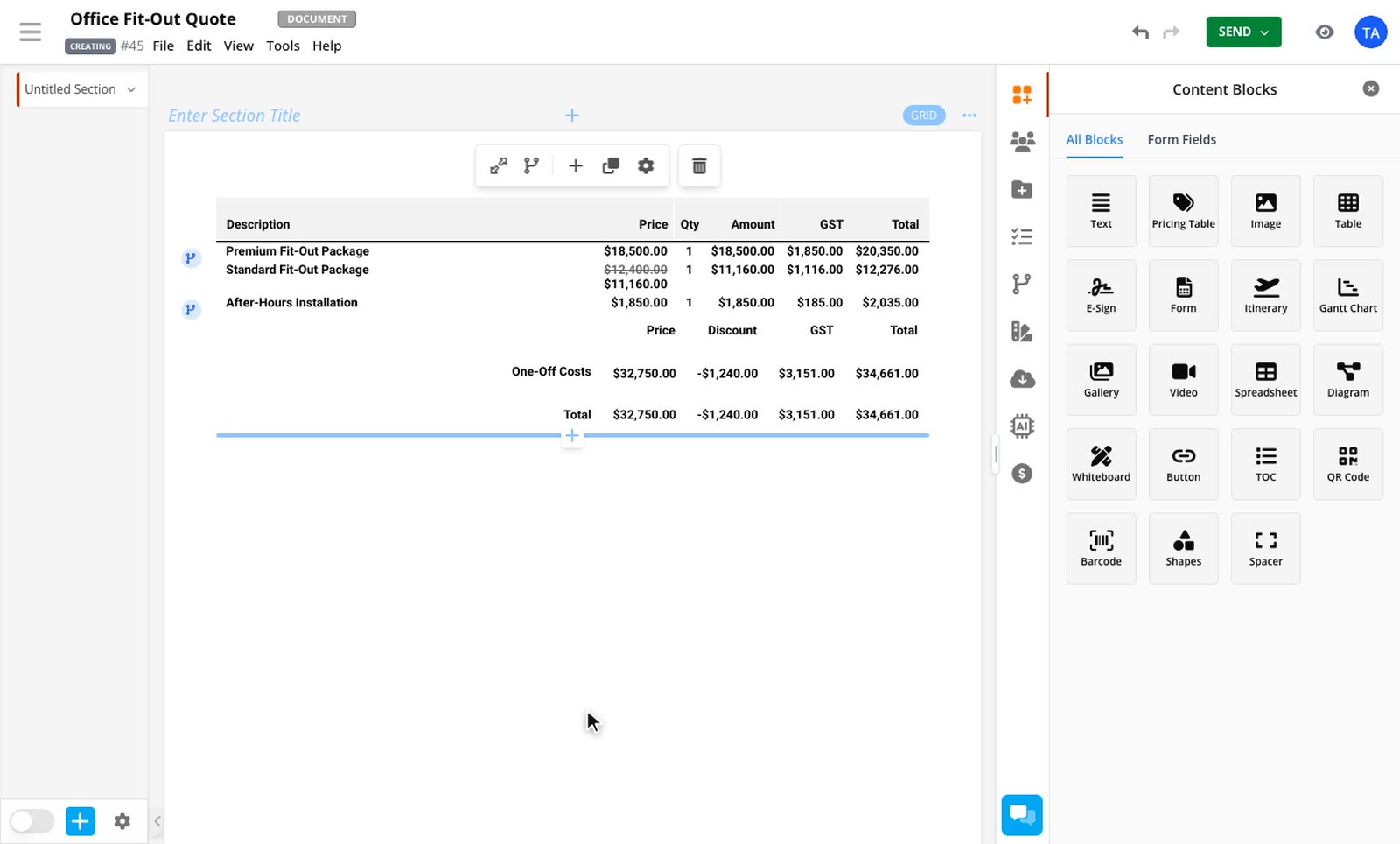
Under On the line, choose Strikethrough, Discount column or Reduced price. The preview at the top shows what your customer will see.
Apply it
Keep This row selected under Apply to, then select Apply. Select Undo on the message that appears if you change your mind.
Percentage or fixed amount
A percentage comes off the whole line.
A fixed amount gives you one more choice when the row's quantity is more than 1. Under Takes off, choose:
Whole line to take the amount off once. $50 off 4 units at $100 makes the line $350.
Per unit to take it off each unit. $50 off 4 units at $100 makes the line $200.
Discounts over a term
If the row has a term of more than 1, such as 12 months, you can choose:
Every month to take the discount off each period.
Once to take it off one time across the full term.
The word changes to match the row's own period.
Before or after tax
By default, a discount comes off before tax, so tax is worked out on the lower price. To apply one after tax, open Advanced and turn on Apply after tax. It comes off the overall total, and you can't hide it from your customer.
Change or remove a discount
Right-click the row and open its adjustment submenu:
Edit discount… reopens the window with your settings.
Under On the line, change how the discount appears without reopening the window.
Under Customer, turn Hide from customer on or off.
Remove discount takes it off the row.
You can also type a new amount straight into the row's discount cell if the column is showing. That changes the amount and keeps your display settings.
A line discount and the discount column
A discount set on a row takes priority over the default set on the discount column. You can mix percentage and fixed discounts in one table.
You don't need to add the column first. If the table has none, one is added out of sight and only shows if you choose Discount column.
Rows with quantity price tiers
The discount comes off the row's current tier price.
Related guides
- Choose how a discount appearsShow a line discount as a crossed-out price, in a discount column or as a lower price, and see how it affects the totals.Line Item Adjustments add-on
- Hide a discount from your customerGive a lower price without showing that a discount exists, in the document, the PDF or anything sent to other apps.Line Item Adjustments add-on
- Adding a Discount Column to a Price TableLearn how to create a discount column in QuoteCloud. Step-by-step instructions for percentage discounts and applying defaults for your discount column.