 QuoteCloud
Pricing rule examples for discounts and margin
Ready-to-copy rules for bundle discounts, volume discounts, returning customer pricing and more.
Each example below is one rule. Build it with New rule in the Logic panel, choosing Adjust its price as the action. The steps are in Change a discount, markup or margin with a pricing rule.
If a rule watches a selected row, turn on Client optional value for that row so your recipient can select it.
Bundle discount
Take 10% off installation when your recipient chooses the premium package, and show the saving.
Item: the Installation row
When: Premium package is selected
Change: Set a discount, 10, Percentage
Show as: Strikethrough
Volume discount
Take 15% off licences once your recipient orders more than 50.
Item: the Licences row
When: the quantity of Licences is above 50
Change: Set a discount, 15, Percentage
Show as: Discount column
Use a percentage here. A fixed amount can end up larger than the line when your recipient lowers the quantity.
Returning customer price
Give returning customers 5% off the whole table, without showing a discount.
Item: the whole table
When: the form answer to "Have you bought from us before?" is Yes
Change: Set a discount, 5, Percentage
Show as: Hide from customer
Rows that can't take a hidden discount, such as an after-tax one, are flagged in the Logic panel.
Withdraw an offer for a short term
A row has a saved discount for a 36-month term. Remove it if your recipient chooses 12 months.
Item: the Subscription row
When: the term of Subscription is 12
Change: Turn the discount off
When your recipient goes back to 36 months, the saved discount returns.
Higher margin for rush work
Move labour to a 40% margin when your recipient chooses express delivery.
Item: the Labour section
When: Express delivery is selected
Change: Set a margin, 40
Each row in the section needs a cost. Rows with no cost are skipped, and the Logic panel tells you how many. Your recipient sees only the new price.
Show a saving only on the larger package
A row has a saved discount that's normally hidden. Show it as a crossed-out price when your recipient chooses the larger package.
Item: the Setup row
When: Large package is selected
Change: Change how the discount shows
Show as: Strikethrough
The amount doesn't change, only how it appears.
Check your rule
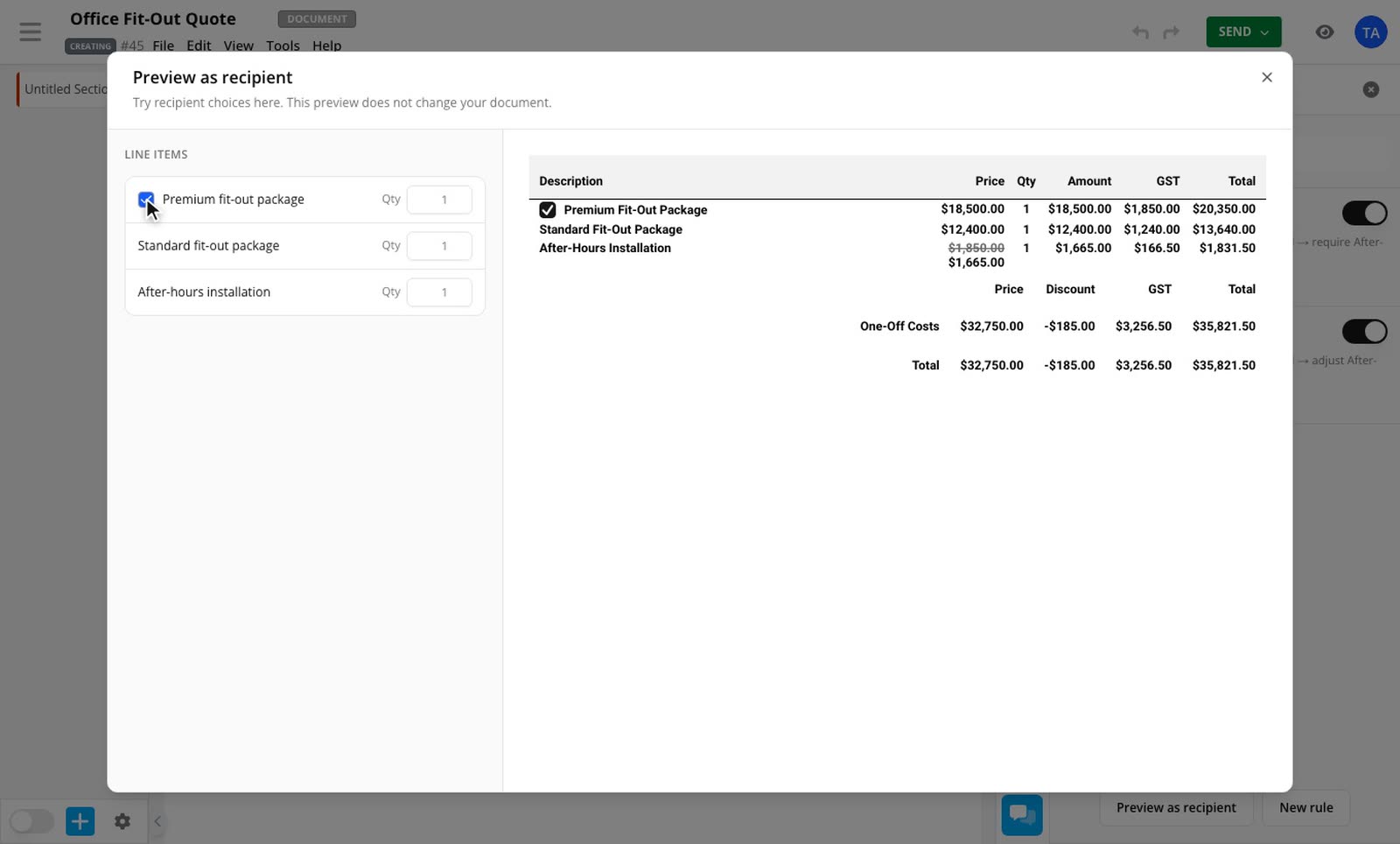
Select Preview as recipient in the Logic panel and make each choice. The rows and totals update as they will for your recipient, and nothing changes in your document.
Related guides
- Change a discount, markup or margin with a pricing ruleTurn a discount or margin on or off, set its amount and choose whether to show it, based on what your recipient selects or answers.Line Item Adjustments and Conditional Pricing add-ons
- Make pricing react to a recipient's choicesUse pricing rules to hide, require or cross out items when a recipient selects a row, changes a quantity or answers a form.Conditional Pricing add-on