 QuoteCloud
Adjust several rows or set a table default
Apply one discount, markup or margin to selected rows, a section or the whole table, or give new rows a starting adjustment.
You can set up one row and copy it to others, or set a table default so new rows start with an adjustment.
Apply to more than one row
5 steps
Open the window
Right-click a row and choose Add discount, margin or markup…. To work with particular rows, select them first. Under Apply to, the first choice becomes the number of rows you selected.
Set the adjustment
Enter it as you would for one row. The preview shows the row you right-clicked.
Choose the rows
Under Apply to, choose This row, This section or All rows. This section only appears if the table has headings.
Decide about the amount
For a discount on several rows, turn Include the amount off to copy only the display settings and leave each row's amount as it is.
Apply it
Select Apply. If it replaces something already set up, the window warns you first. Select Undo on the message to reverse it.
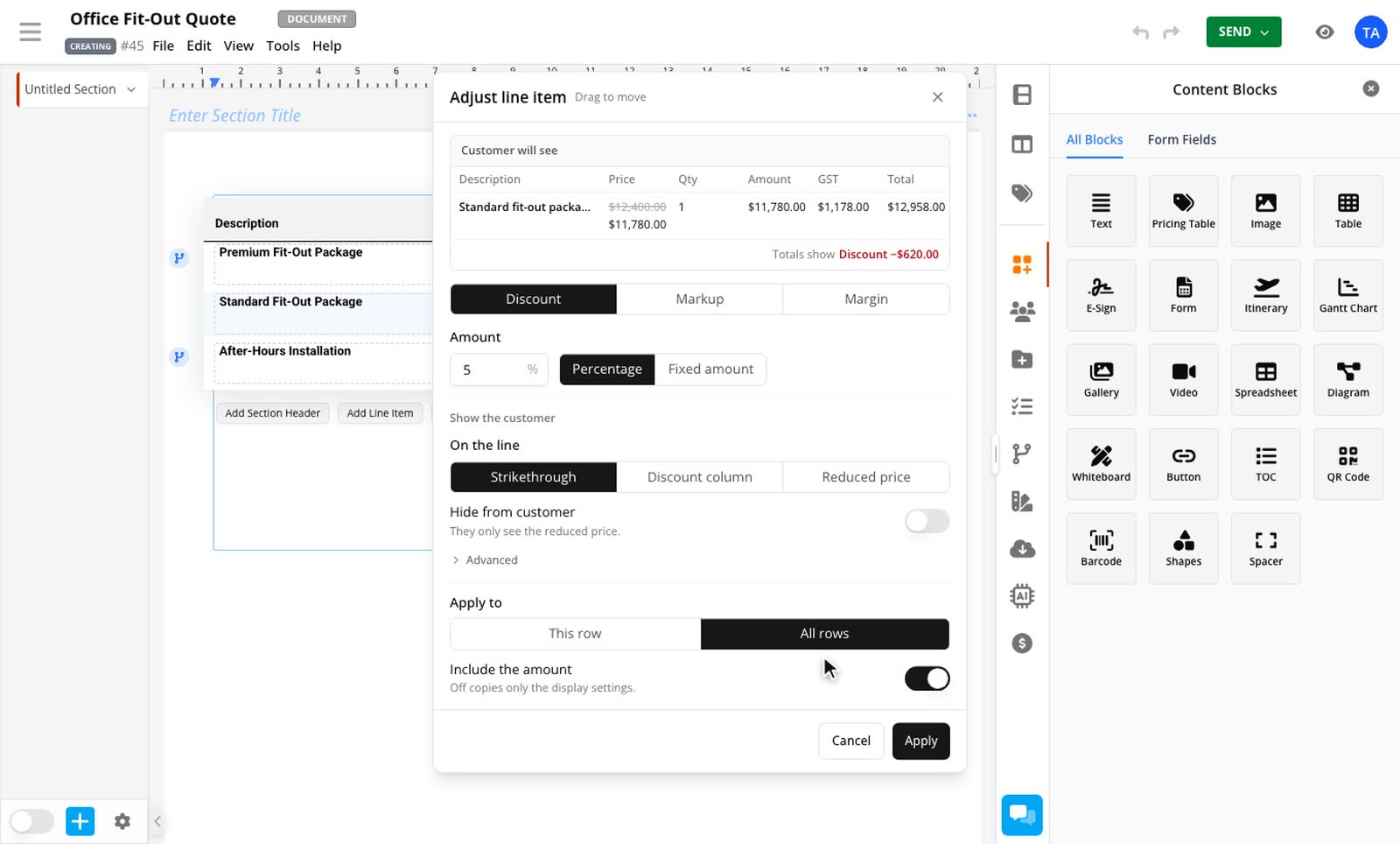
This is a one-time copy. Rows you apply it to don't stay linked, so a later change to one row doesn't reach the others.
Rows that can't take the change are skipped, and the message tells you how many. See why an adjustment isn't available.
Set a table default
A table default is a starting adjustment for new rows.
4 steps
Open the table's menu
Right-click the table and choose Set a table default….
Set the adjustment
Choose the discount, markup or margin. There's no cost field, because each row has its own cost.
Choose what it covers
Under Use this for, choose New rows only, or New and existing rows to also apply it to the rows already in the table.
Apply it
Select Apply.
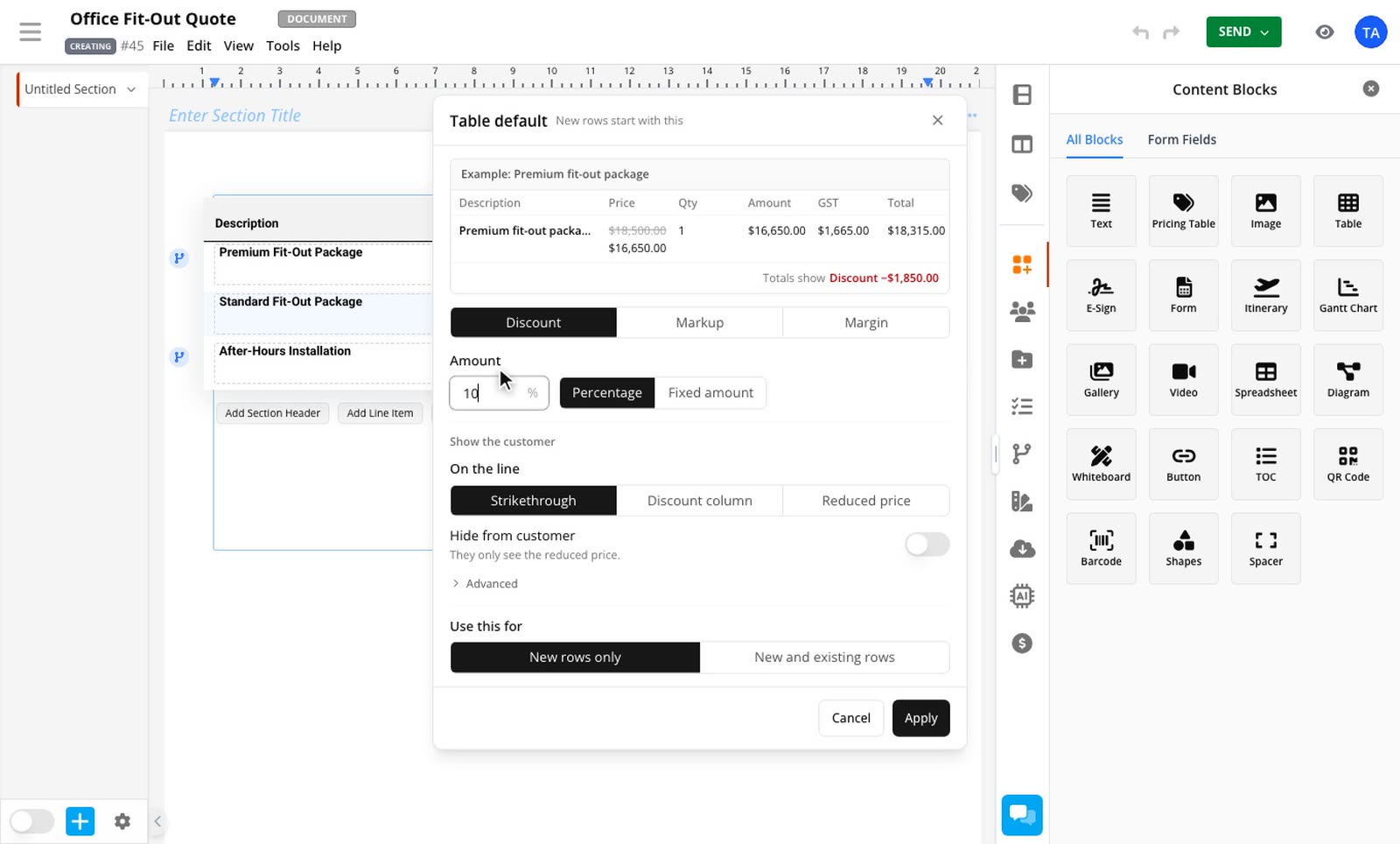
Things to know:
A new row copies the default when you add it. Changing the default later doesn't change rows already added.
New and existing rows happens once. Headings are skipped, and so are rows with no cost if you're setting a markup or margin.
A default markup or margin waits until the new row has a cost.
To apply a default to the table's rows later, open the table's menu and choose Apply to existing rows….
To take it away, choose Remove table default. Rows that already have the adjustment keep it.
To use a default in new tables as well, use Save Settings as Default in the sidebar.
Templates and copies
Adjustments and table defaults carry through templates, copies, revisions and content library blocks.
Related guides
- Discount a line itemTake a percentage or a fixed amount off a single row, per unit or for the whole line.Line Item Adjustments add-on
- Set a price with markup or marginWork out a row's price from your cost and a percentage. Your customer never sees the cost or the percentage.Line Item Adjustments add-on