 QuoteCloud
Before you start
You need access to your organisation’s settings, and you need to be in the company the webhook belongs to. If you haven’t made a webhook yet, create one first.
Webhook switched itself off? That happens when your system answers with an error that says the address is wrong. Find out why in steps 1 and 2, fix it, then turn it back on in step 3.
Find the delivery
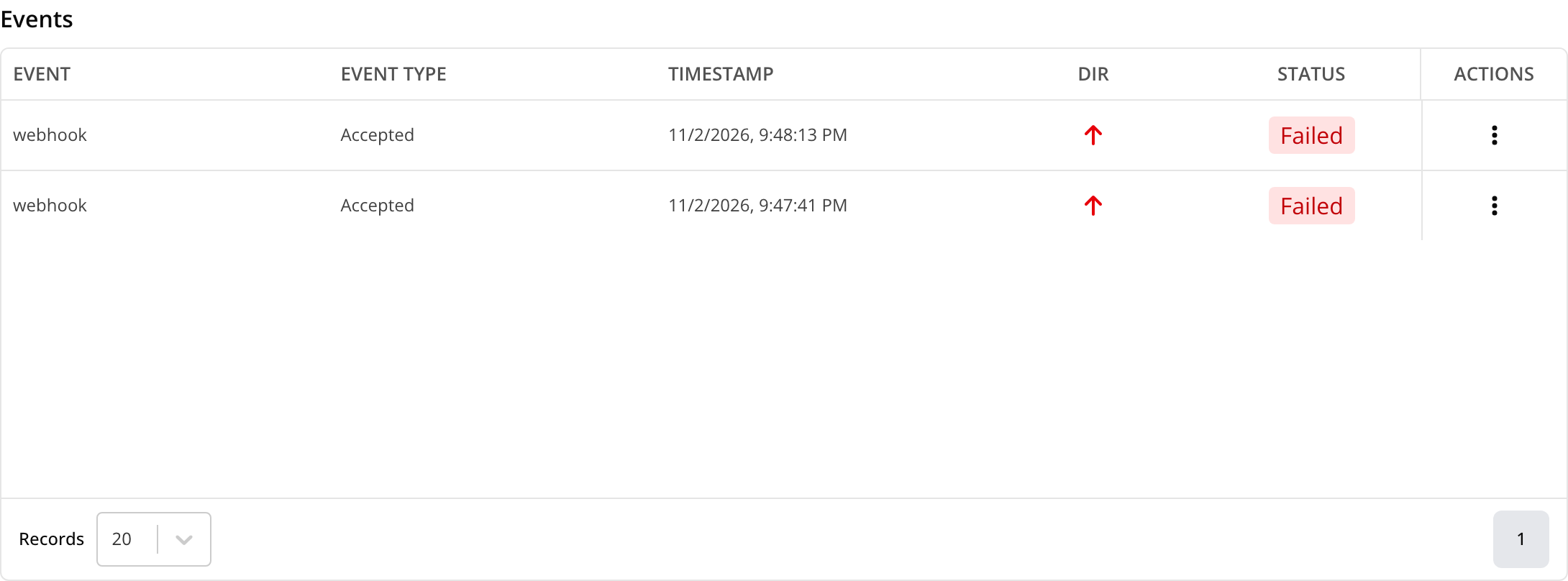
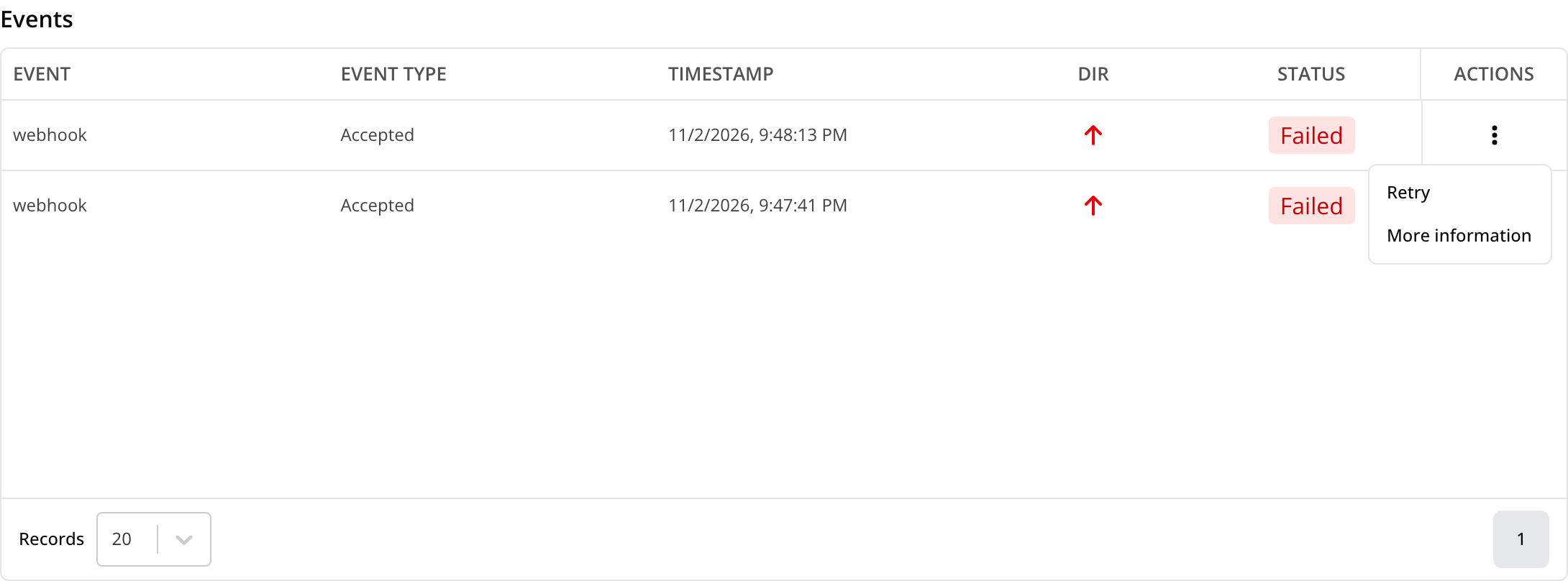
Open the API dashboard and look at the Events table. Each webhook QuoteCloud sends is a webhook row with an up arrow, showing the status that set it off and whether it was a Success or Failed. Rows with a down arrow are calls your system made to the API.
 Open full size in a new tab
See what went wrong
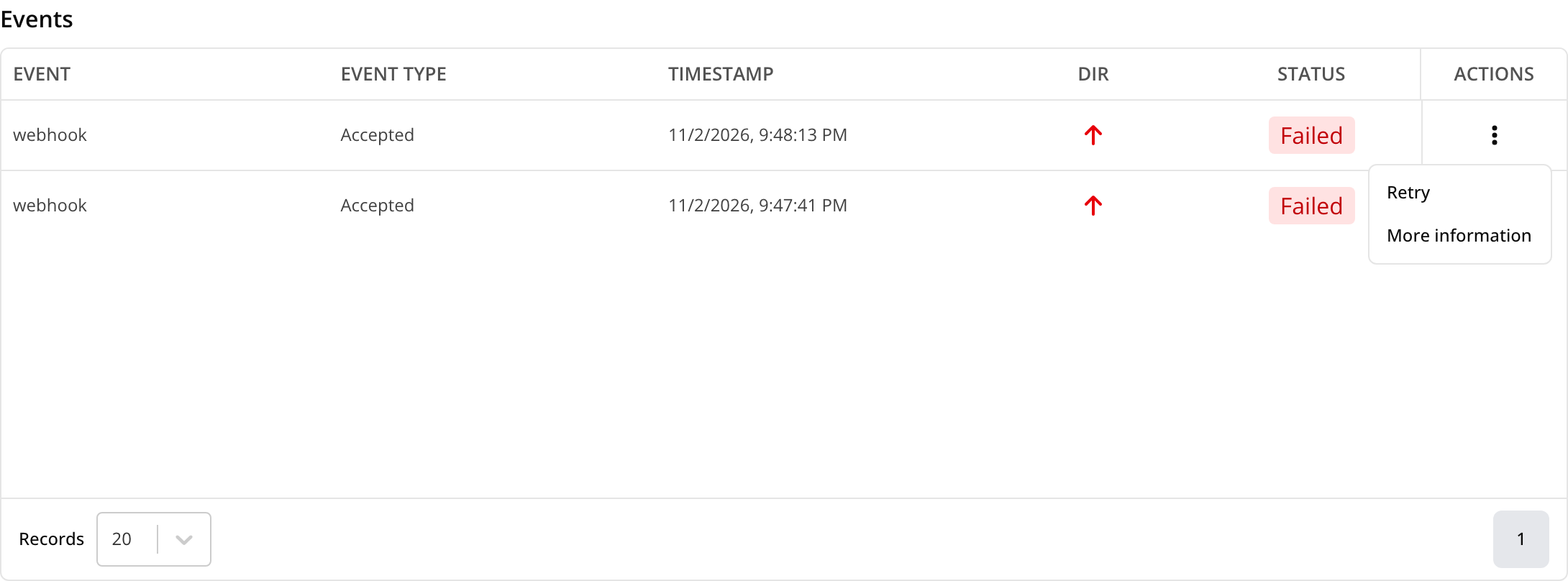
Open the ⋮ menu on the row and choose More information.
 Open full size in a new tab
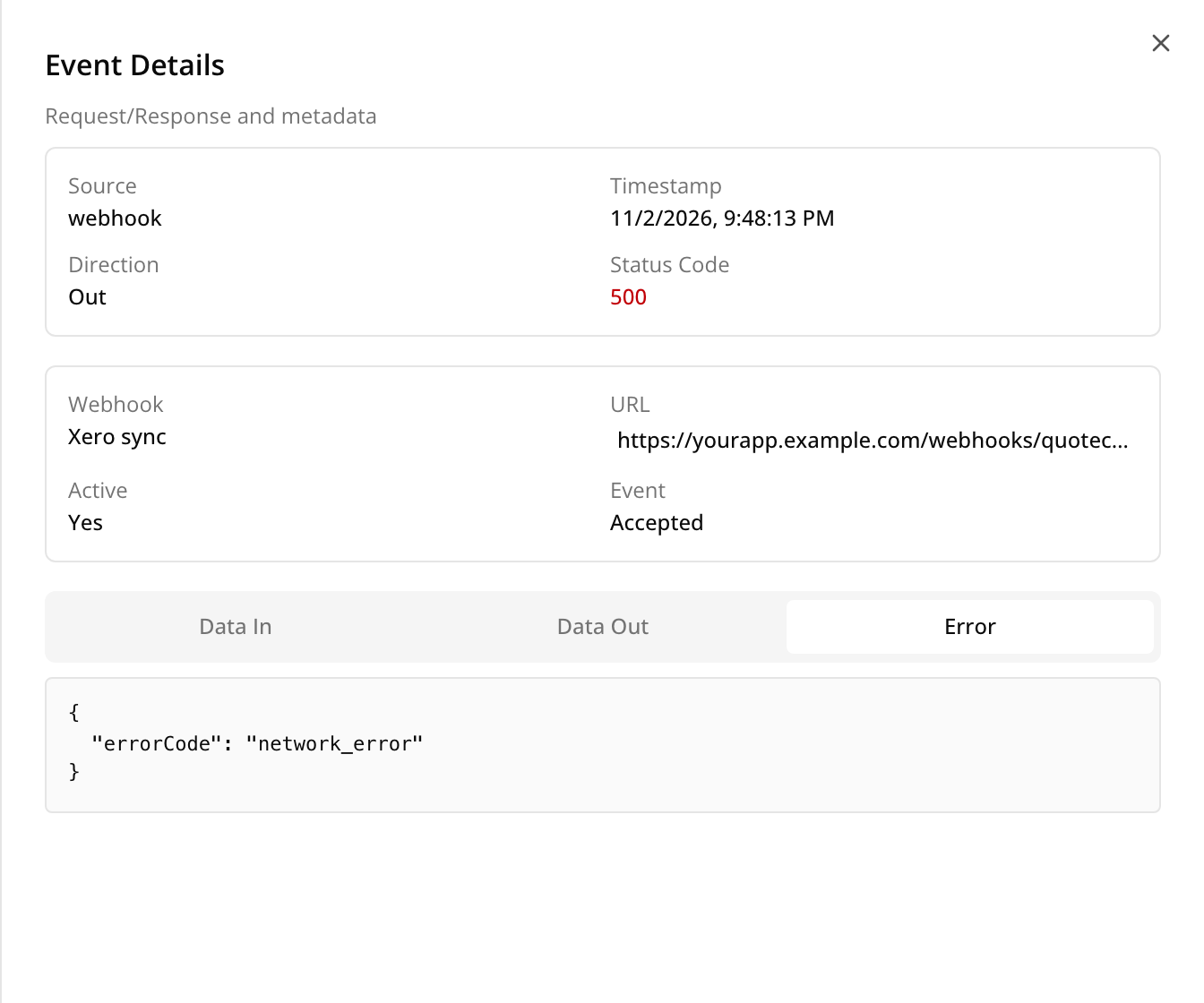
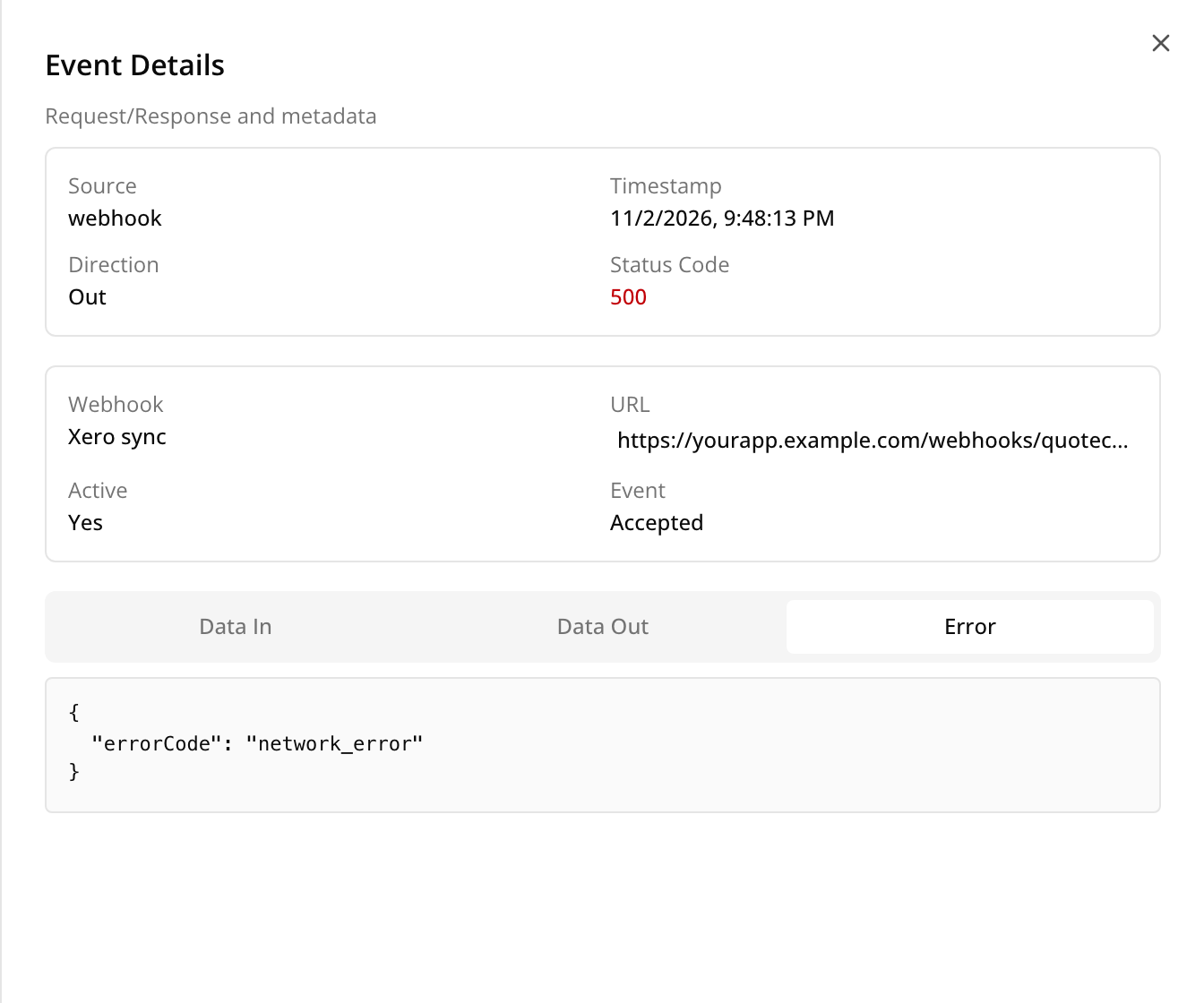
The panel shows the Status Code your system replied with, which webhook it was, and whether that webhook is still Active. The Error tab names the problem, and Data In shows exactly what was sent. Data Out only records whether it worked, not what your system replied, so check your own logs for that.
 Open full size in a new tab
Fix it, and turn the webhook back on if it’s off
Use what the error means below to fix the problem. If Active says No, choose Manage Integrations at the top right of the API dashboard and tick Active next to the webhook. Change the address with Edit in the ⋮ menu if that was the problem.
 Open full size in a new tab
Send it again
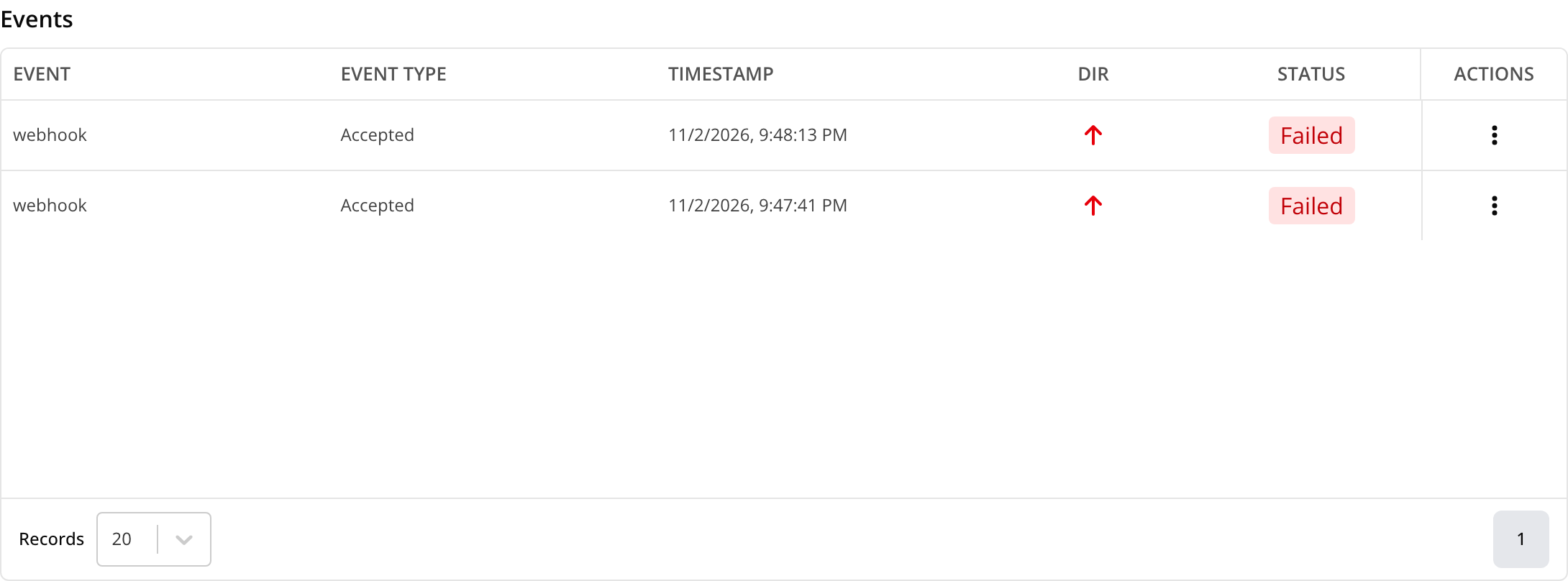
Back in the Events table, open the ⋮ menu on the failed row and choose Retry. QuoteCloud sends the same data with the same
eventId, and the result shows as a new row. Retry works while the webhook is switched off, so you can test your fix before turning it back on.

What the error means
https address.If Retry doesn’t work
Retry only appears on failed webhook rows. It can’t send a delivery if the webhook has been deleted, or if it was made through the API and that connection has since been revoked or lost the permission it needs. A message tells you which. Reconnect, or subscribe again, and future deliveries will work.
Catch up on what you missed
While a webhook is off, nothing is sent and nothing is recorded, so there’s nothing to retry. To catch up, use List documents with status and status_changed_after set to when the webhook went off. Some of those documents may have reached you before it went off, so make sure handling one twice does no harm.