 QuoteCloud
Before you start
You need the API & Zapier add-on on your company and a Zapier account. Zaps act as the person who connected them, in the company they chose, so connect with an account that can do what your Zaps need.
Find QuoteCloud in Zapier
In a Zap, search for QuoteCloud when you choose an app, or start from the QuoteCloud page on Zapier.
Connect your account
When Zapier asks you to sign in, a QuoteCloud window opens. Sign in if you need to, and check the company named at the top. Choose Change company if it’s the wrong one.
The window lists the Required permissions, which are always on, and the Optional permissions, which you can switch on or off. Leave on anything your Zaps need, such as sending documents, then choose Allow access. In Zapier, the connection is named after you and your email.
Build your Zap
Choose what starts the Zap and what it does. These are the most used:
When this happens in QuoteCloudDocument Status Changed, plus Accepted, Paid, Lost and ExpiredForm Submitted on DocumentRecipient First Viewed Document and Recipient Signed DocumentDocument Payment Event and Document Comment EventNew Contact Created, Contact Updated and Product ChangedDo this in QuoteCloudCreate Document and Send DocumentUpdate Document Status and Update Document Details and ForecastCreate New Contact and Update ContactCreate ProductGenerate or Fetch Document PDF LinkFind something in QuoteCloudFind Document and Find Document StatusFind Latest Document by StatusFind or Create Contact and Find or Create ProductZapier lists the rest when you choose an event, and tests each step with your real data.
Check it in QuoteCloud
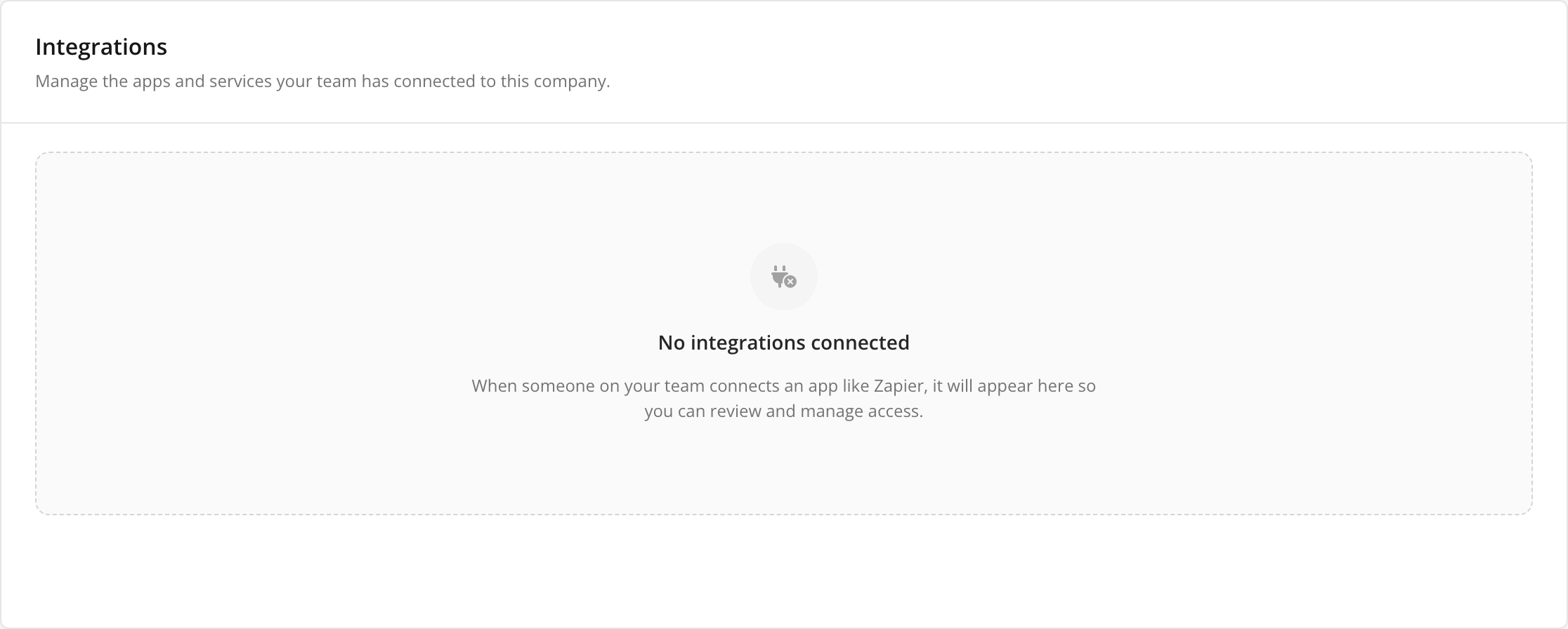
Once connected, Zapier appears under Integrations in your settings, with who connected it, its permissions and when it was last used. Until then, the page looks like this:
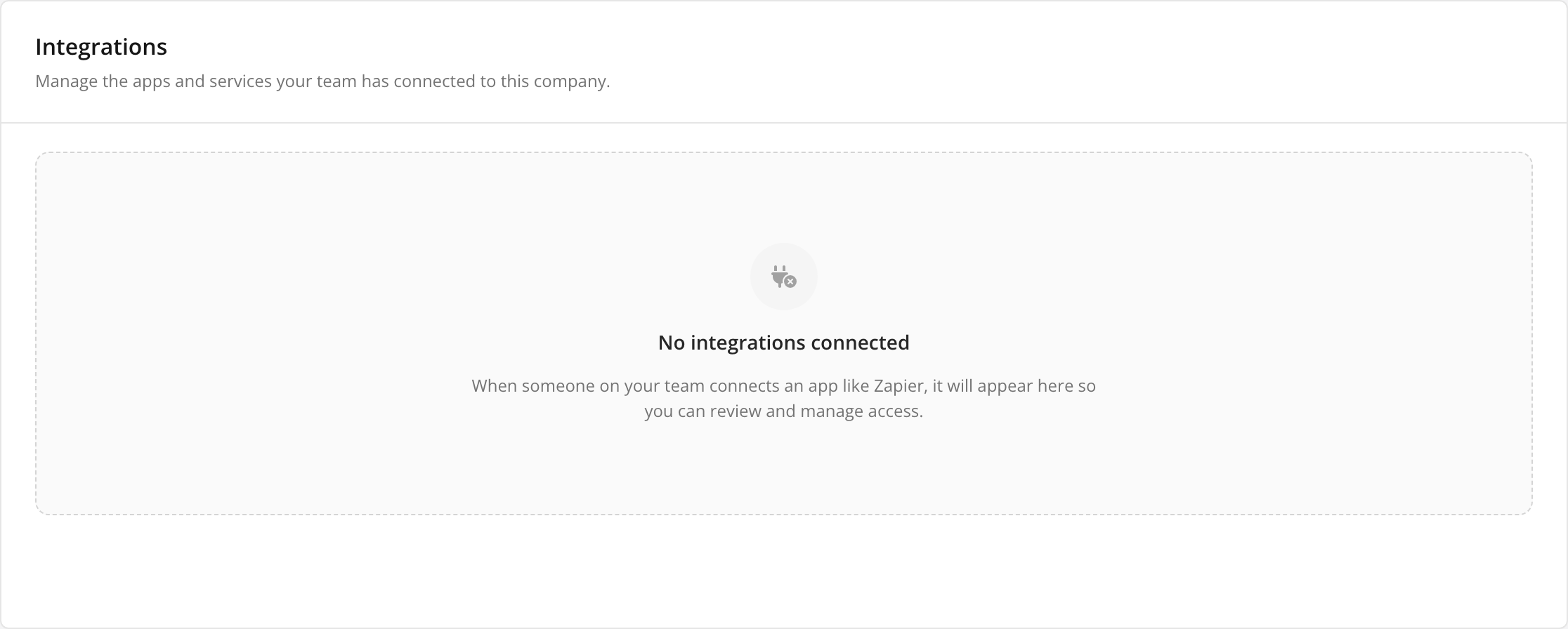 Open full size in a new tab
Each Zap that starts from a QuoteCloud event also adds a webhook under Manage Integrations on the API dashboard, and its deliveries show in the Events table. Zapier controls those webhooks, so change them in Zapier rather than in QuoteCloud.
What it costs
Documents created by Zapier count towards the API & Zapier add-on, the same as documents created through the API. Zapier charges separately for your Zapier plan.
If a Zap stops working
Disconnect Zapier
Under Integrations, choose Revoke on one connection, or Revoke all to disconnect everyone’s. Zaps using it stop straight away. To connect again, start from inside Zapier.