 QuoteCloud
Before you start
You need the API & Zapier add-on on your company, access to your organisation’s settings, and Postman or any other tool that sends web requests. Test credentials act as you, in the company you’re working in, so anything you create is yours.
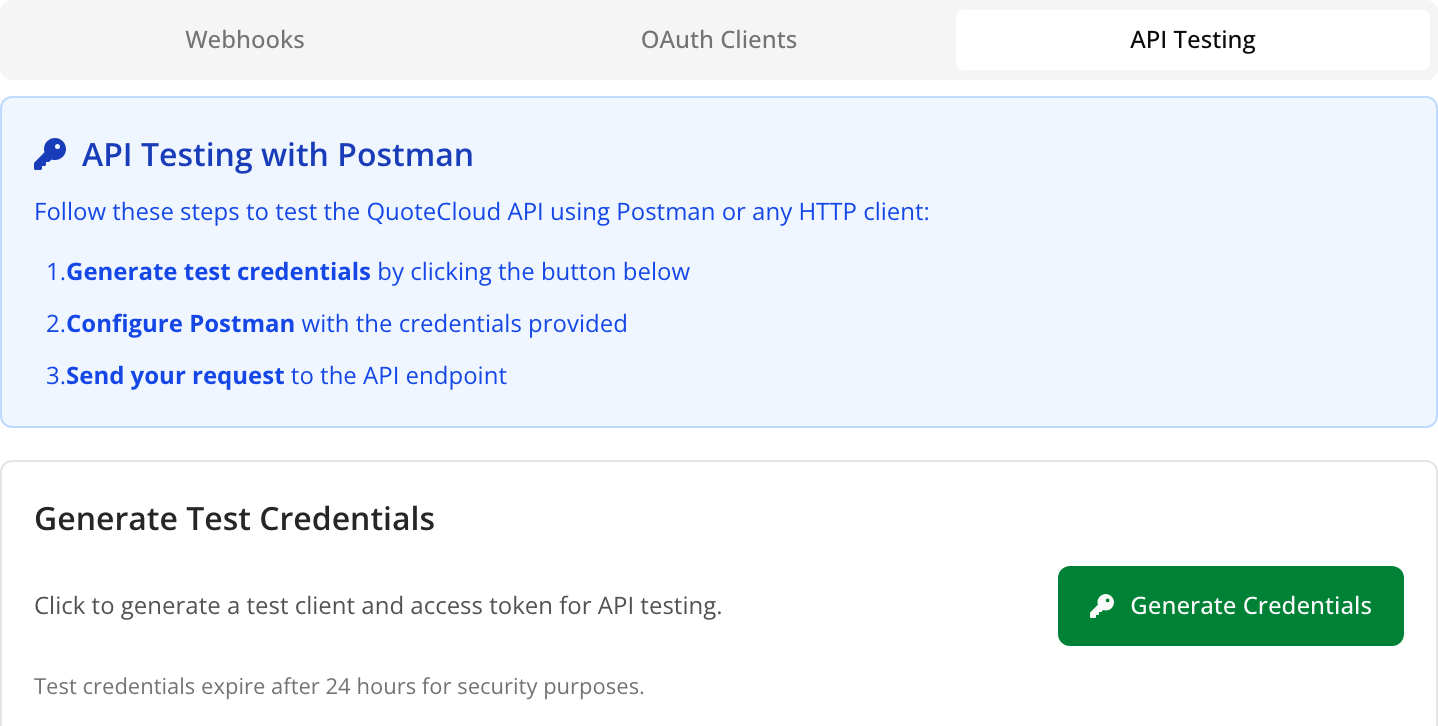
Open API Testing
Open the API dashboard, choose Manage Integrations at the top right, then the API Testing tab.
 Open full size in a new tab
Generate credentials
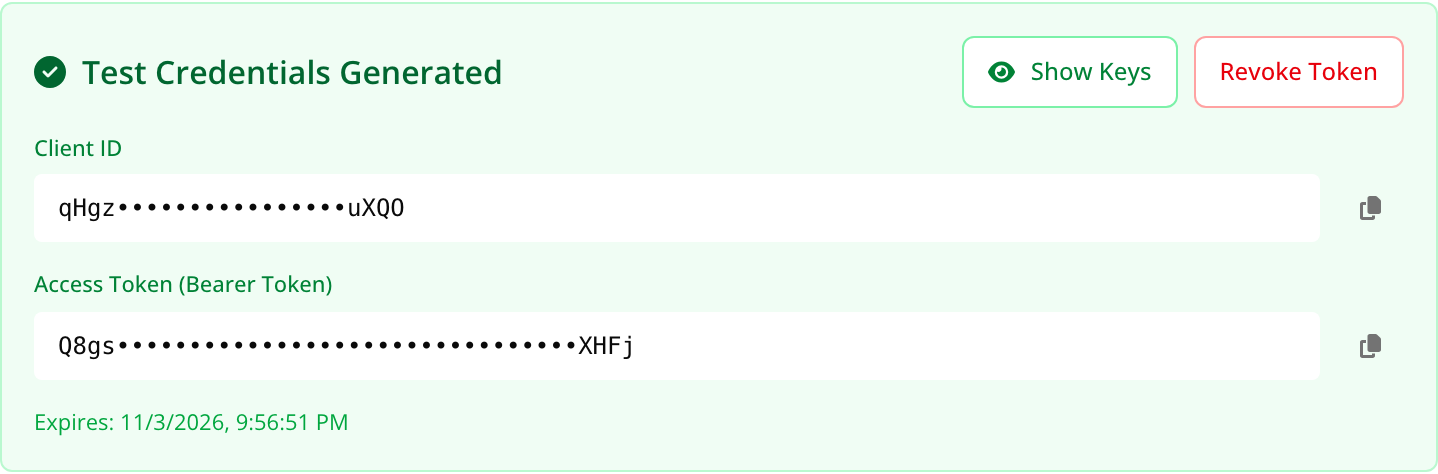
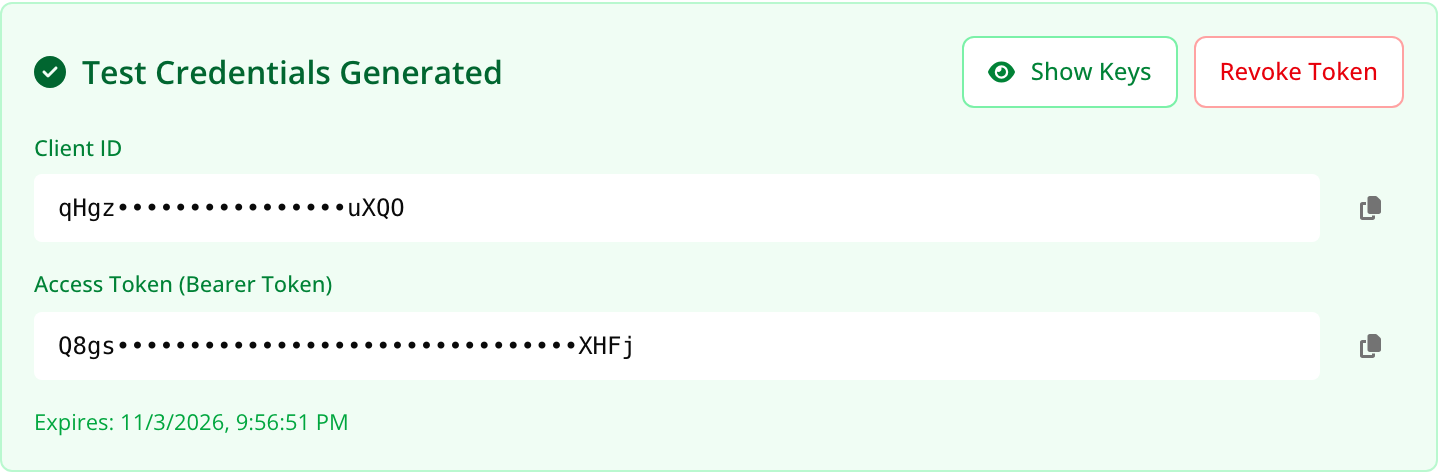
Choose Generate Credentials. You get a Client ID and an Access Token, which last 24 hours. They’re hidden on screen, but the copy buttons copy the whole value. QuoteCloud also adds a client called API Test Client to your OAuth Clients, and uses it again next time.
 Open full size in a new tab
Set up the request in Postman
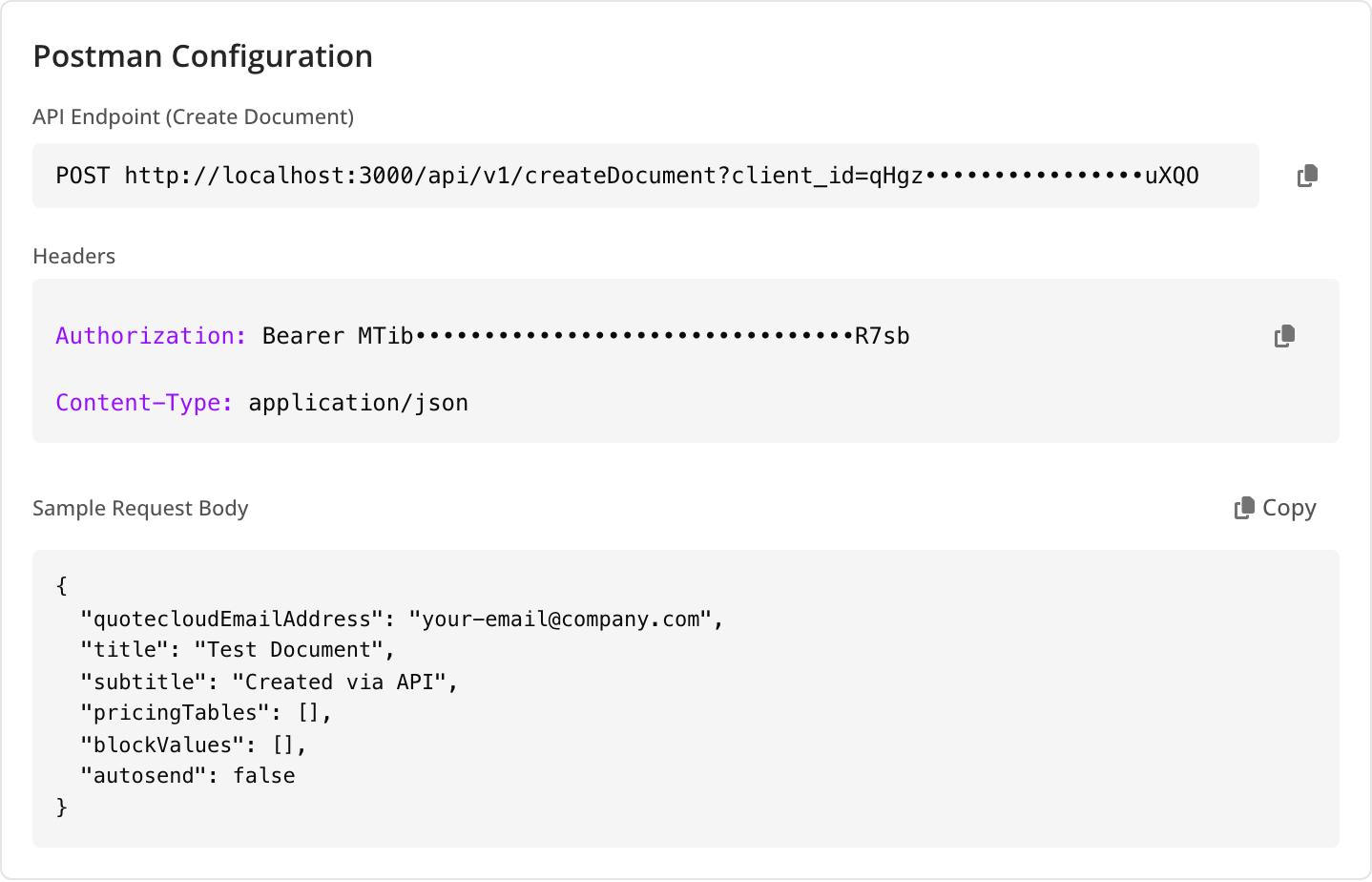
Below your credentials, Postman Configuration has everything to copy. The picture comes from a test server: on your account, the address starts with
https://app.quote.cloud.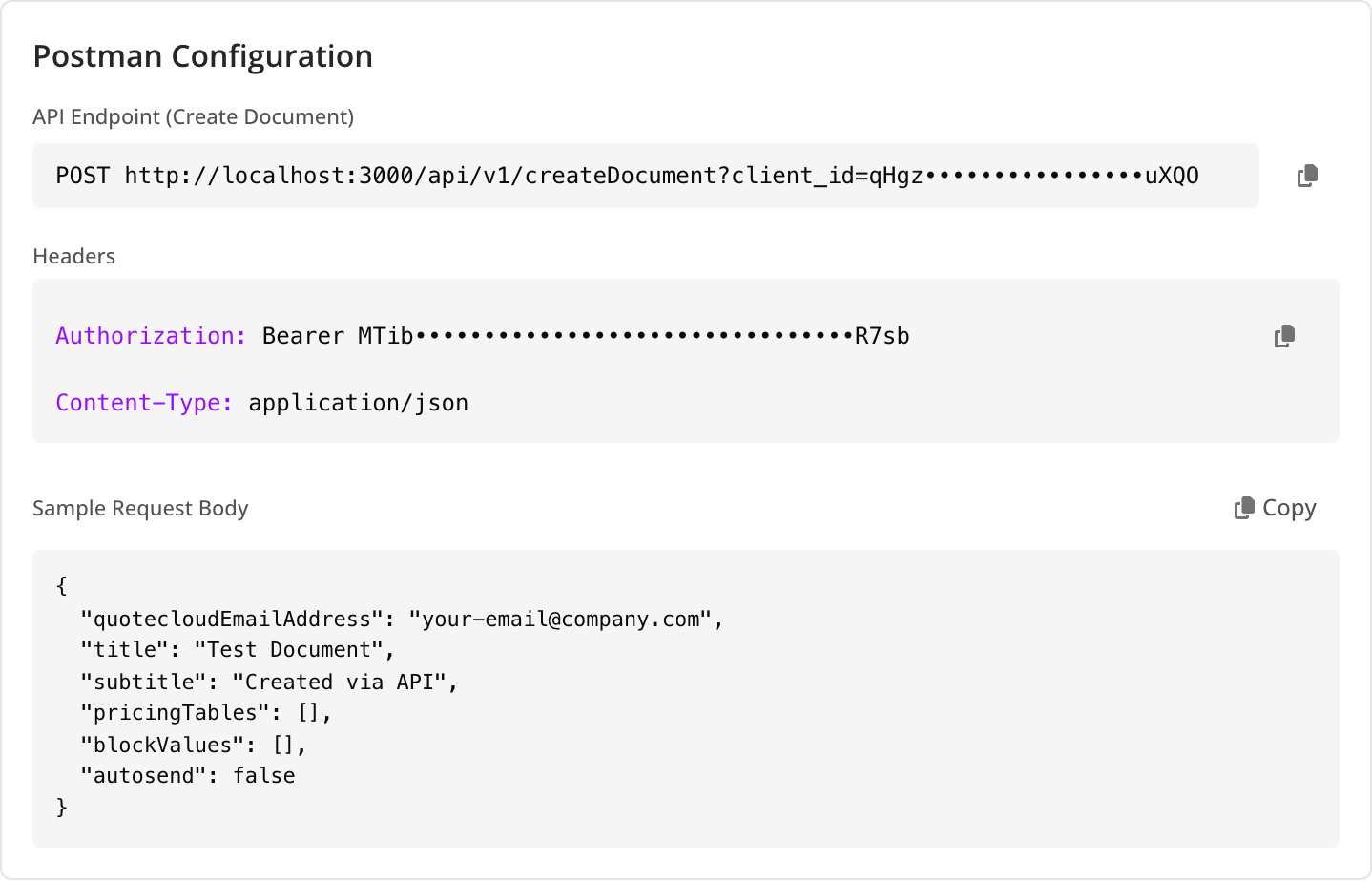 Open full size in a new tabAddressIn a new Postman request, set the method to POST and paste the endpoint. Keep the
client_idon the end, because the API turns the request away without it.HeadersOn the Headers tab, addAuthorizationwith the copied value, which starts withBearer, andContent-Typeset toapplication/json.BodyOn the Body tab, choose raw and JSON, then paste the sample. ChangequotecloudEmailAddressto the email you sign in with.Send it
Choose Send. You should get a
200reply like this one, which is shortened here, and a new draft called Test Document on your dashboard. The request also shows in the API dashboard’s Events table, with a down arrow.Reply{ "data": { "message": "Document created", "status": "success", "zapierDocument": [ { "documentId": 39, "documentTitle": "Test Document", "documentOwner": "you@yourcompany.com", "deliveryStatus": "draft", "editUrl": "https://app.quote.cloud/en/editor/…" } ] } }
Try other endpoints
Every endpoint in this reference works the same way: send the Authorization header and add client_id to the address. A simple one to start with is List document status options. Here’s the same request as above from a terminal:
curl -X POST "https://app.quote.cloud/api/v1/createDocument?client_id=YOUR_CLIENT_ID" \
  -H "Authorization: Bearer YOUR_ACCESS_TOKEN" \
  -H "Content-Type: application/json" \
  -d '{"quotecloudEmailAddress": "you@yourcompany.com", "title": "Test Document"}'
If it doesn’t work
client_id. Generate new credentials and copy them again.When you’re finished
Choose Revoke Token to stop the token working straight away. Test credentials are for trying things out. For a real connection, create an OAuth client.