QuoteCloud
What’s changed
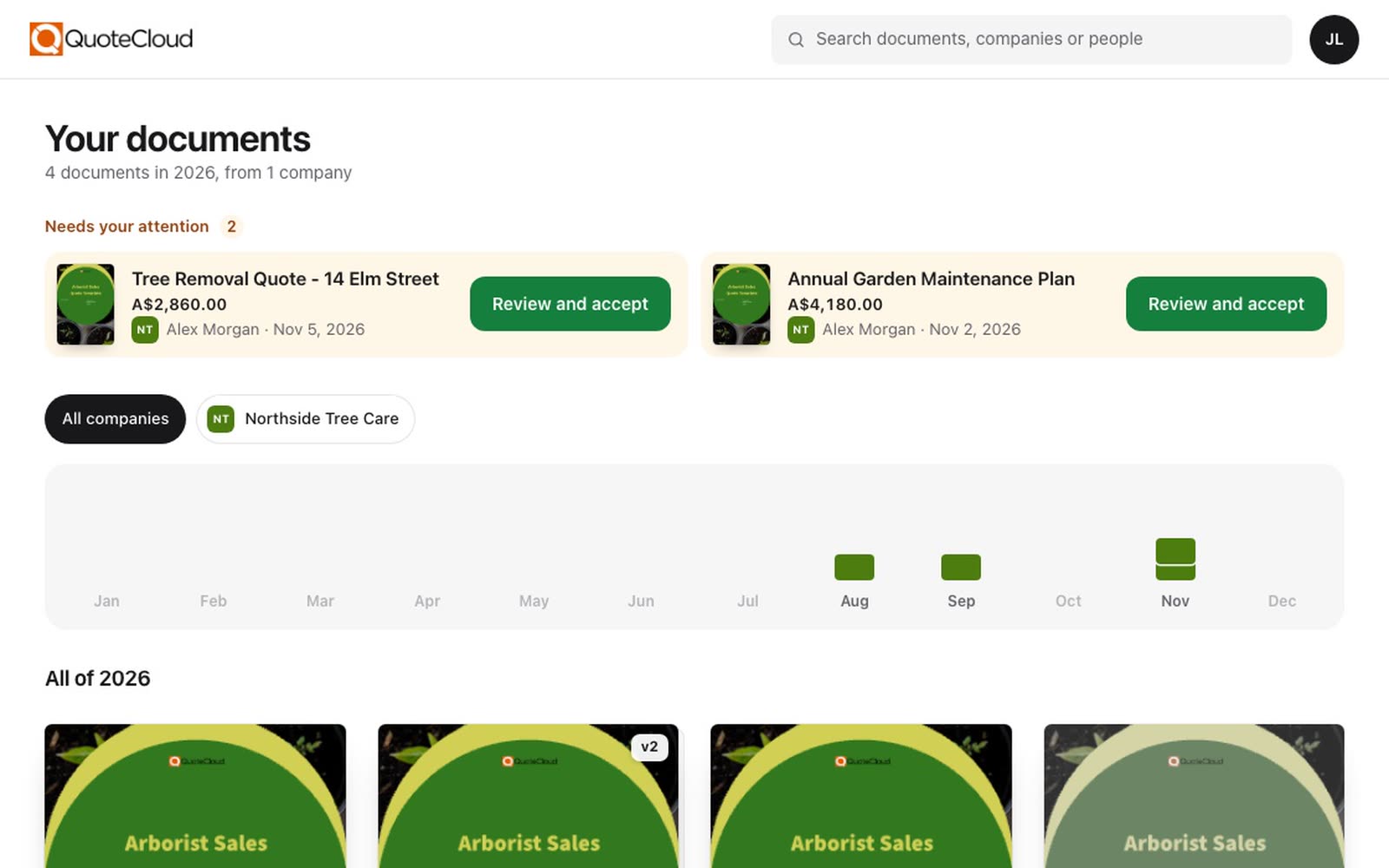
Your customers no longer need to search their inbox for an old quote. With Viewer Home, they confirm their email address and see every document sent to them, from every company that uses QuoteCloud. Documents that need them to accept or sign show first.
Sign in with a code
A recipient goes to app.quote.cloud/viewer and enters their email address. We email them a six-digit code and a link. No account is created, and nobody needs a password.
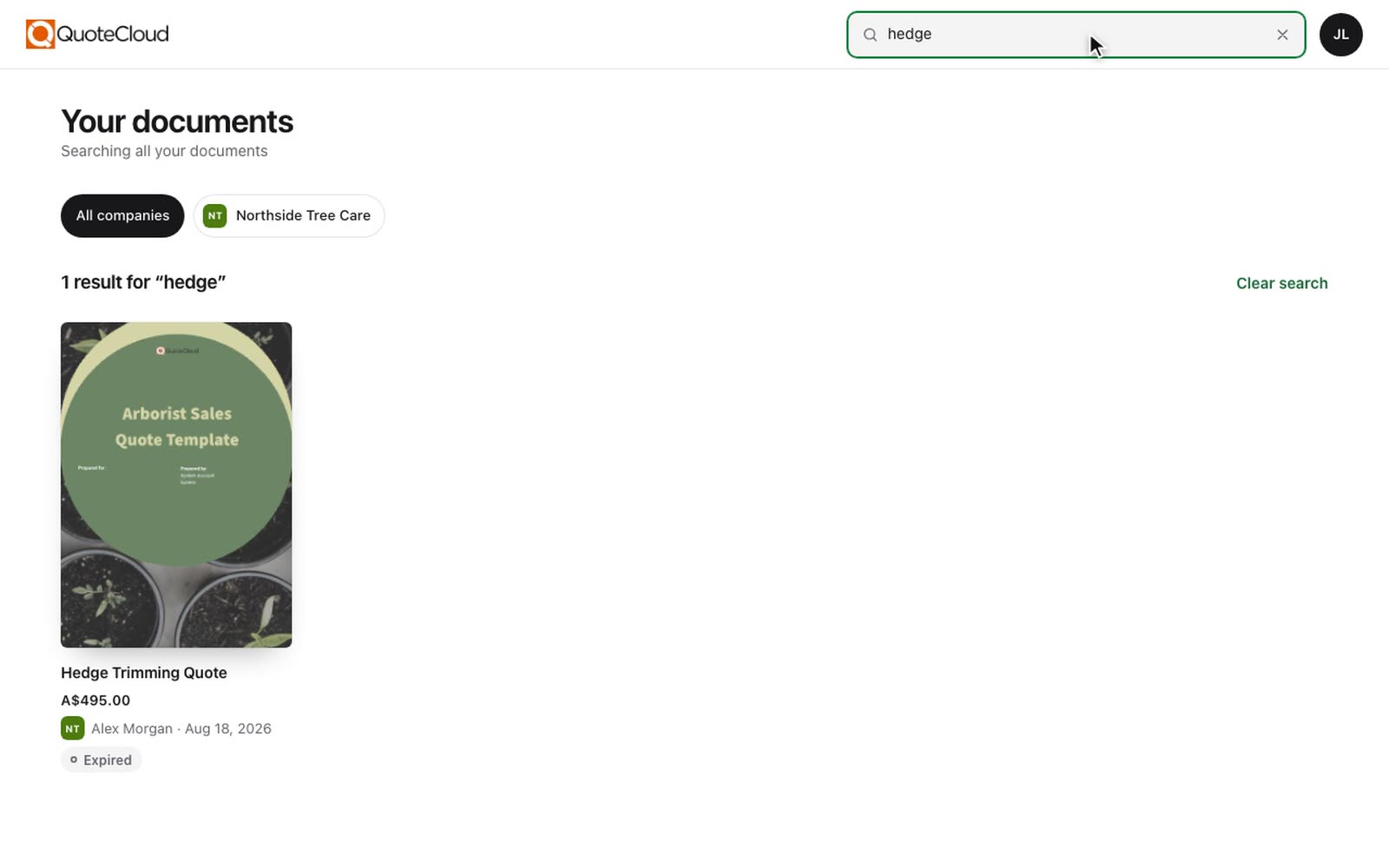
Find any document
Each document shows its total, who sent it and where it is up to. Select a month to see what arrived then, or search by document, company or person.
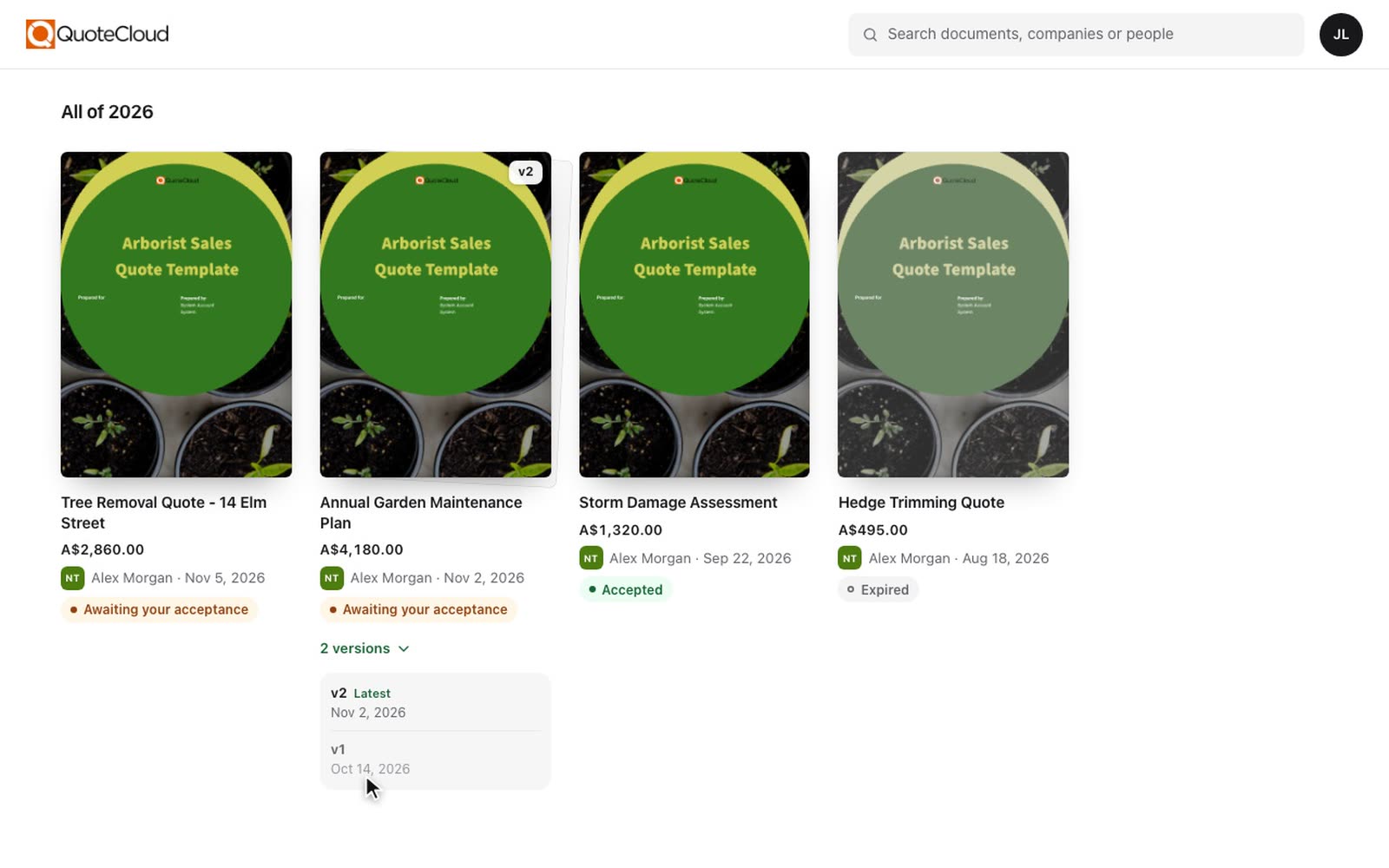
Every version in one place
When you revise a document, your recipient sees the latest version. Older versions they received are kept under it, so they can see what changed.
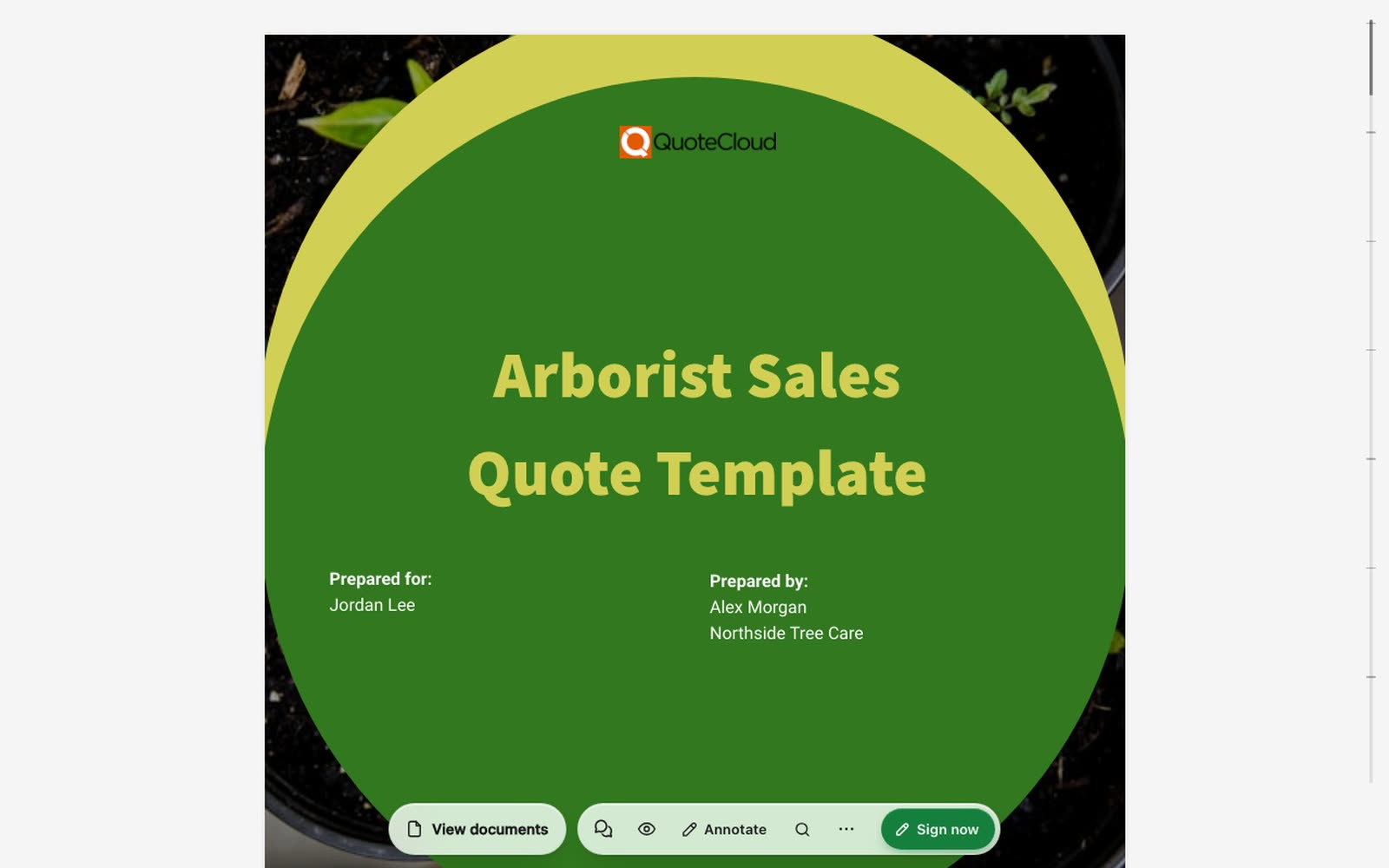
Back to the list from any document
When a recipient opens one of your documents on a computer, View documents takes them to their list. On a phone, it is under View other documents in the ⋯ menu.
Links that can't open
If a document link is damaged or no longer works, the recipient now sees a page that explains this and points them to the sender or Viewer Home. Before, they were sent to the login page, and some signed up for a trial by mistake.
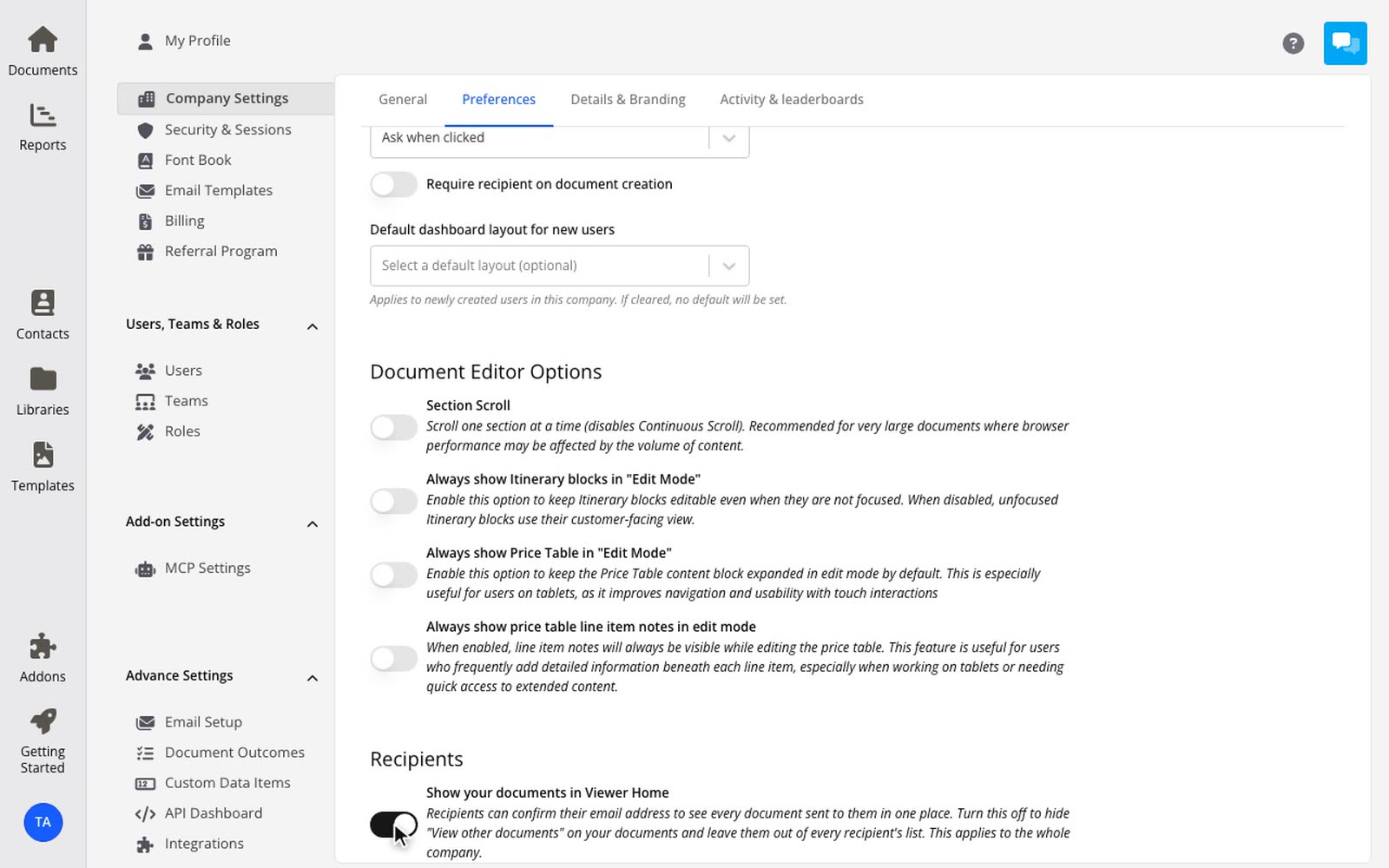
Turn it off for your company
Viewer Home is on for every company. To keep your documents out of it, go to Settings > Company Settings > Preferences and turn off Show your documents in Viewer Home. Recipients can still open every document you send them.
Read how recipients find their documents in Viewer Home and turn Viewer Home off for your company for more detail.