QuoteCloud
What’s changed
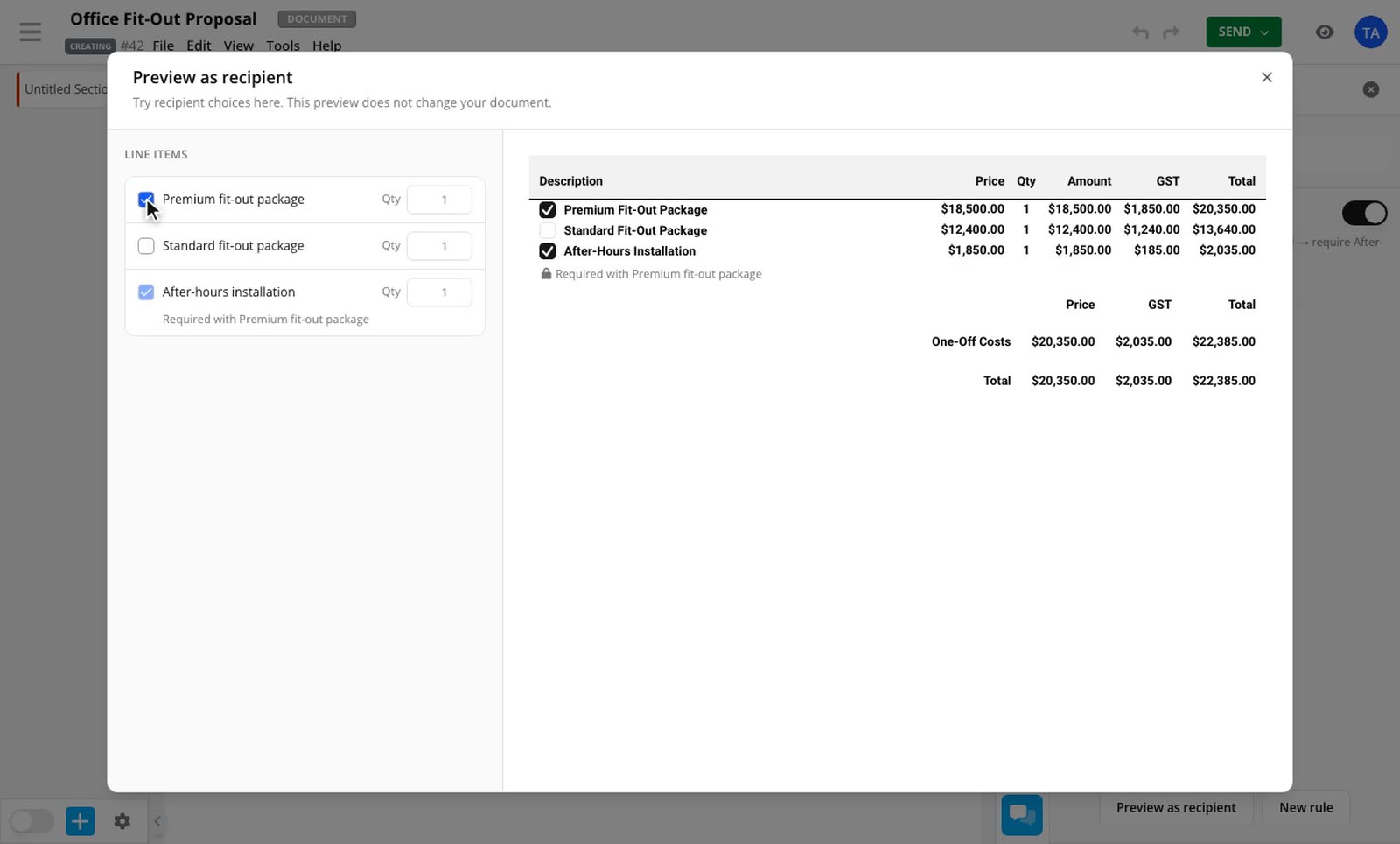
A quote can now change as your recipient makes their choices. Pick the premium package and after-hours installation becomes required. Answer a form question and a whole section can disappear. They only see what applies to them.
Six things a rule can do
Hide an item, show it only when a condition is met, set it as required, set it as unavailable, strike it out, or make your recipient choose. A rule can change one row, a whole section or a whole table, and it can watch a selected row, a quantity, a term or a form answer.
Try it before you send
Preview as recipient lets you make the same choices your recipient will. You see each rule apply and the totals update, and nothing changes in your document.
The price they accept stays put
When your recipient accepts or signs, the result is saved with the document. Editing the rules later doesn't change a quote that's already been accepted.
How to use it
3 steps
Open Logic
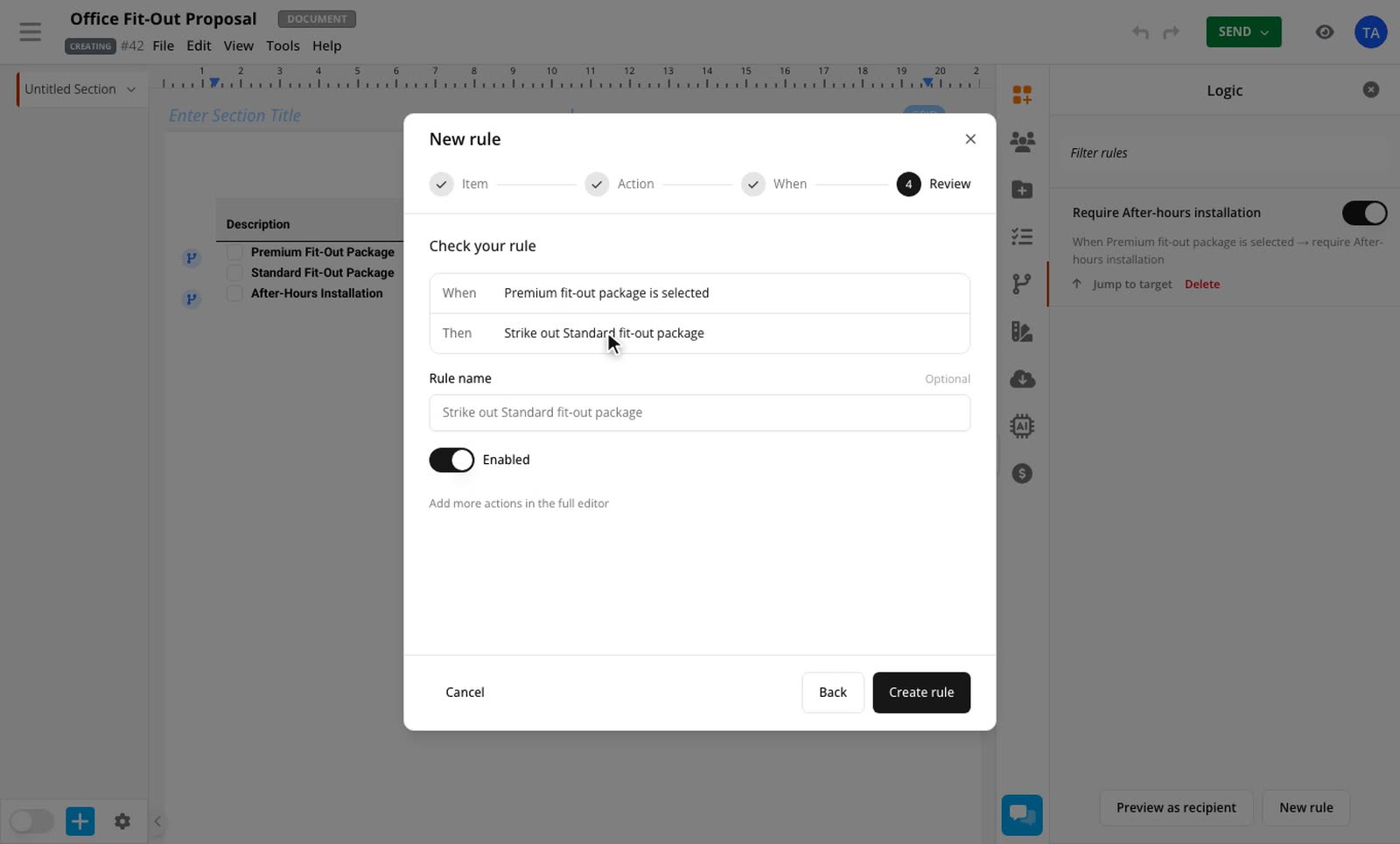
In the editor, open Logic and select New rule. You can also right-click a pricing row and select Conditional logic.
Build the rule
Choose the item, what should happen to it and when. To let your recipient select a row, turn on Client optional value for that row.
Check it
Select Create rule, then select Preview as recipient to try it out.
Conditional Pricing is included on the Business plan and above, and during a trial. Read how pricing rules work for every option.