QuoteCloud
What’s changed
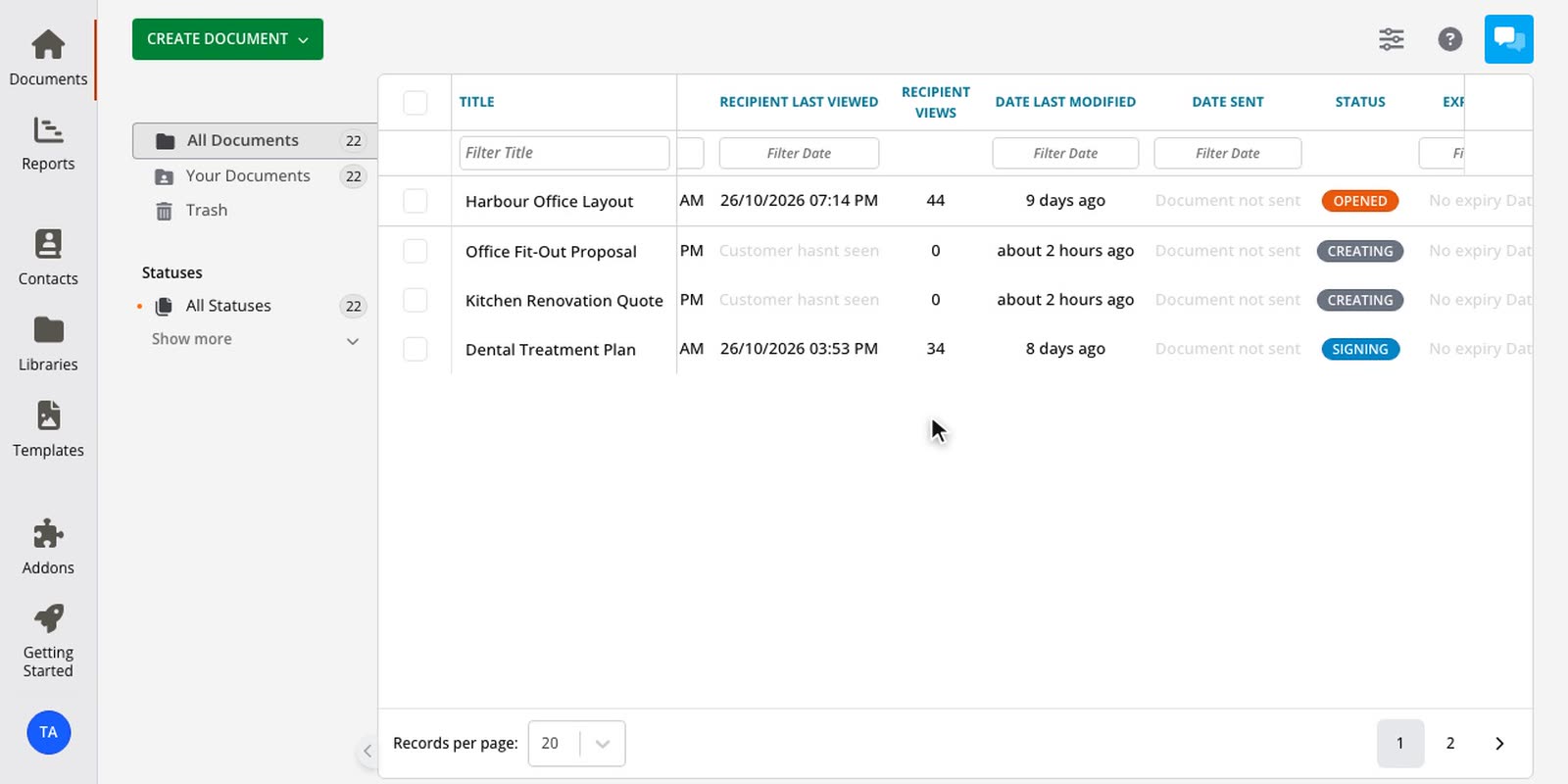
A wide documents table no longer costs you your place. Freeze a column like Title and it stays put while everything else scrolls past it.
Freeze one column or several
Each column in your layout has a snowflake. Select it and the column joins the frozen group, moving up beside any others you've already frozen.
To freeze the first few columns without changing their order, hold Shift and select the snowflake on the last one you want. Every column before it freezes too.
Left or right
Columns in the top half of the list freeze to the left of the table, and columns in the bottom half freeze to the right. That lets you keep a document's title on one side and its total on the other.
How to use it
3 steps
Open your layout
On the Documents page, select the settings icon at the top right, then select Dashboard Layout.
Select the snowflake
Hover over a column in the list on the right and select the snowflake. The column now shows Frozen left or Frozen right.
Save your layout
Select Save. Your frozen columns stay frozen the next time you open the page. To unfreeze a column, select its snowflake again and save.
Read more about editing the layout of your documents table.