QuoteCloud
What’s changed
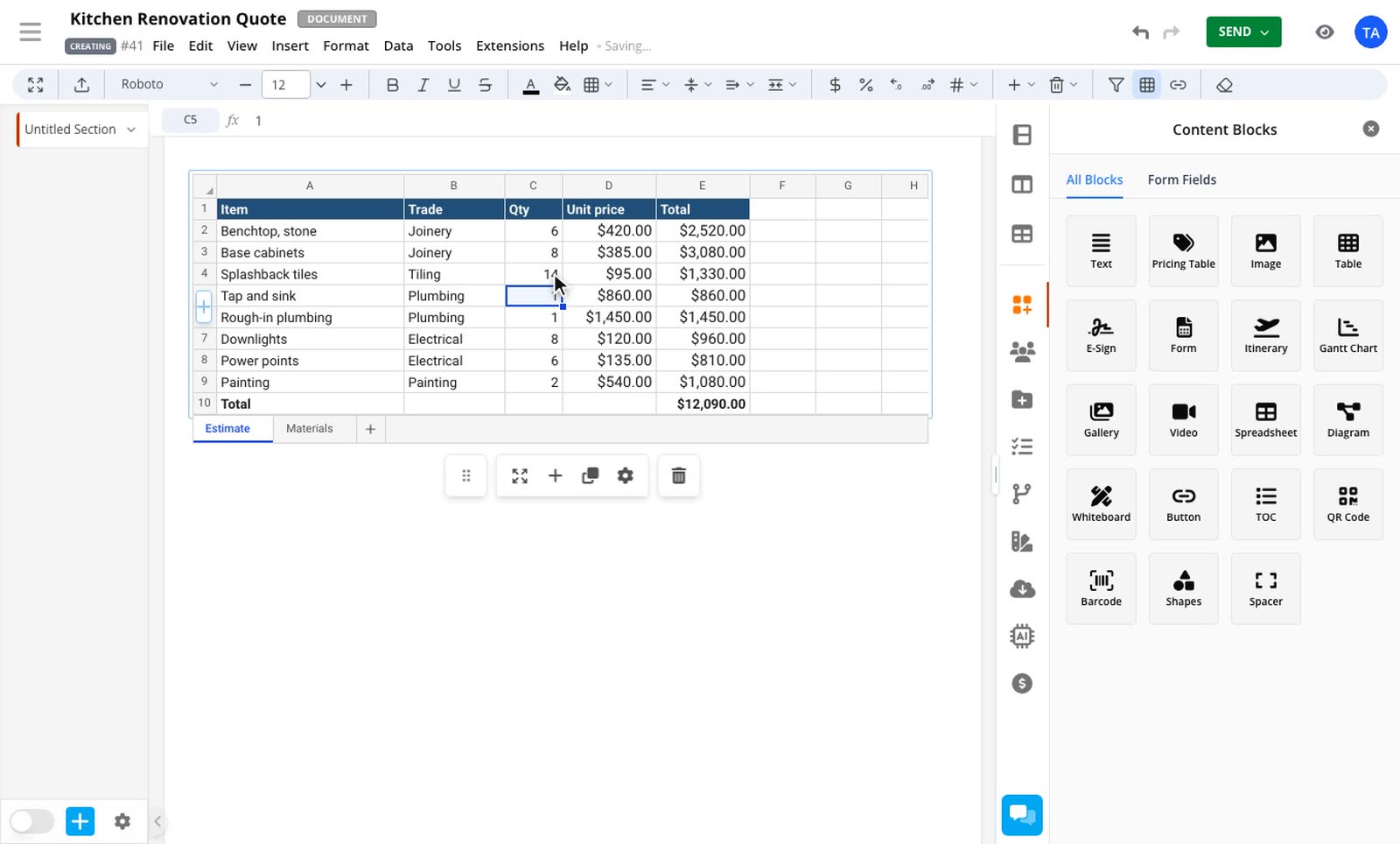
We've rebuilt the spreadsheet block. It opens where it sits on the page, with the menus you know from other spreadsheet apps. Spreadsheets already in your documents use the new editor too.
Edit where it sits
Select a cell and start typing. The sheet doesn't move or resize when the editor opens, so you keep your place on the page.
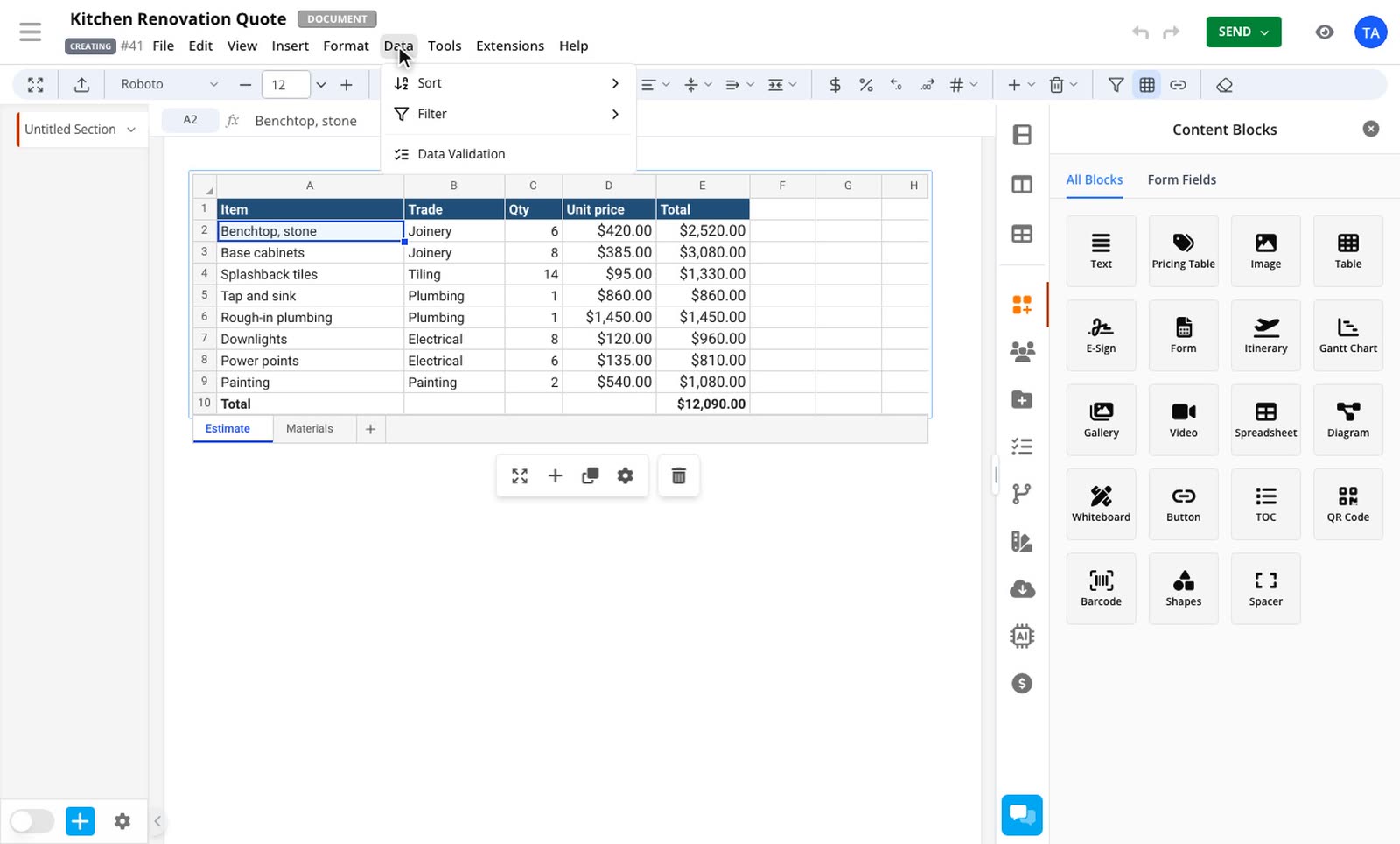
A full menu bar
While you're editing, File, Edit, View, Insert, Format, Data and Tools appear at the top of the document. You can sort and filter, freeze or hide rows and columns, add conditional formatting, checkboxes and links, and find and replace. Data validation gives cells a list or date picker.
Import or paste your data
Import an .xlsx or .csv file from the File menu. Formulas, formatting and sheet tabs come across. If your spreadsheet already has data, you choose whether to add the file as new sheets or replace what's there. You can also paste from Google Sheets and keep your values and number formats.
No more row and column cap
The old limit of 200 rows and 50 columns is gone. However large the sheet gets, recipients and PDFs only see the cells with content, with no scrolling inside the block.
Use a cell's value elsewhere
Right-click a cell and select Copy Spreadsheet Reference, then paste it into a table cell or a pricing row note. The figure stays linked to the sheet.
How to use it
3 steps
Add a spreadsheet
Select Spreadsheet under Content Blocks in the editor, or select an existing one in your document.
Select a cell
Select any cell and start typing. The menus and toolbar appear at the top of the document.
Import a file if you have one
Select File, then import your
.xlsxor.csvfile. Read how importing works for more detail.