 QuoteCloud
How recipients find their documents in Viewer Home
Anyone you send a document to can confirm their email address and see every document sent to them, without creating an account.
Viewer Home is a page where a recipient can see the documents sent to their email address. It works without a QuoteCloud account, and using it never creates one. Share this guide with a customer who asks where to find an old quote.
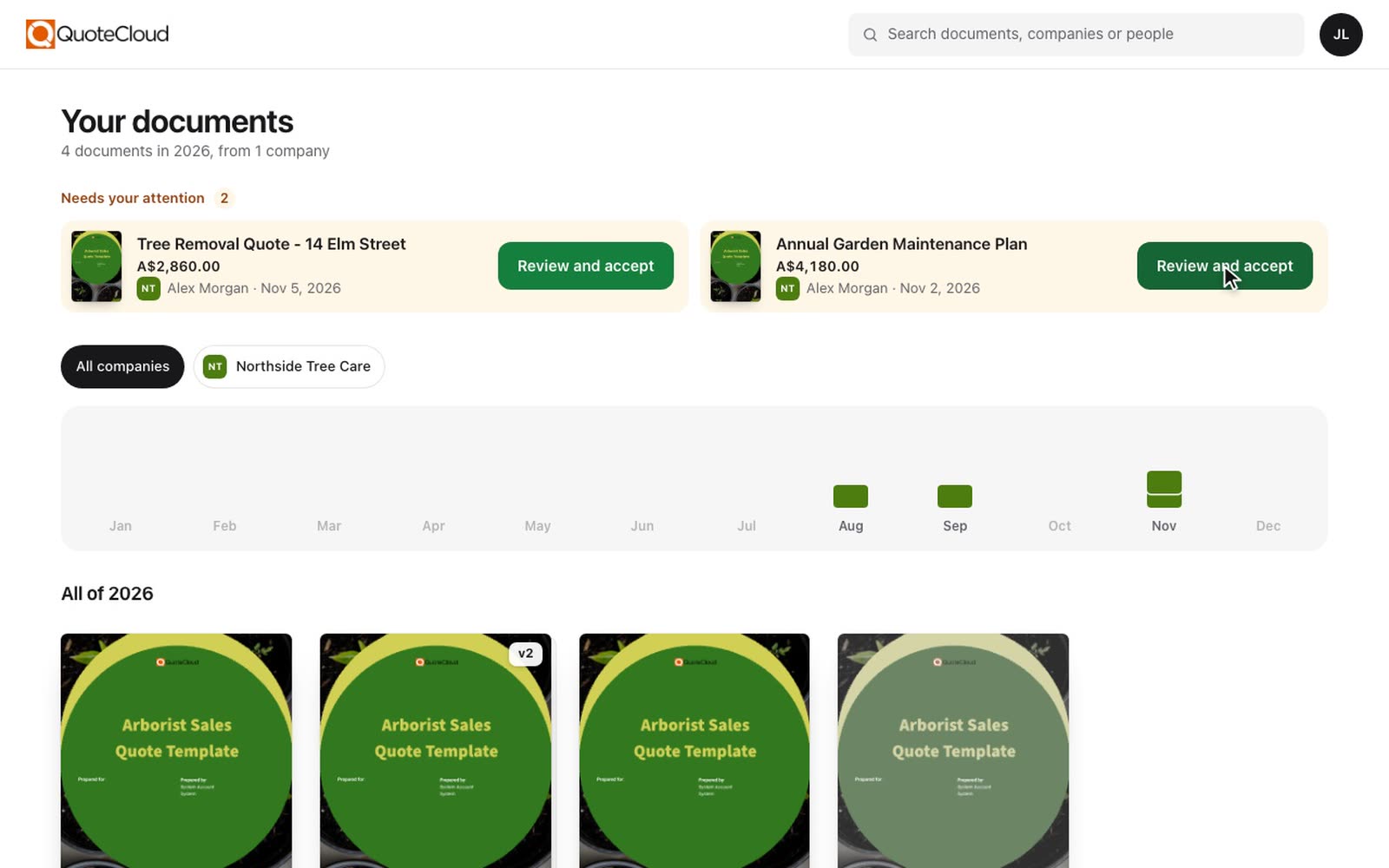
Open Viewer Home
There are two ways in:
Go to
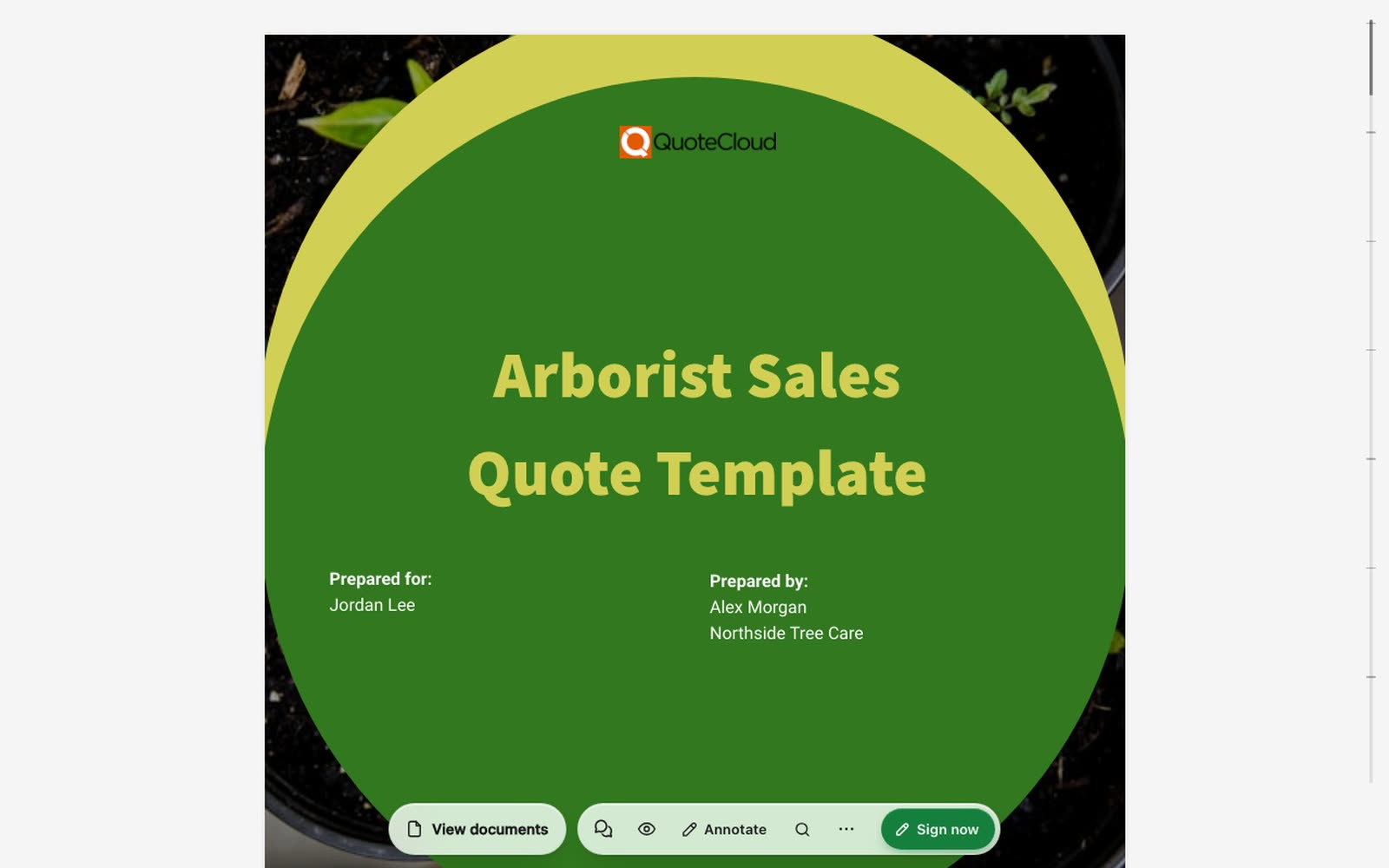
app.quote.cloud/viewer.From a document, select View documents at the bottom of the page. On a phone, open the ⋯ menu and select View other documents.
Confirm the email address
Sign in to Viewer Home
3 steps
Enter the email address
Enter the email address the documents were sent to, then select Email me a code.
Open the email
QuoteCloud sends an email with a six-digit code and a link. The email only sends when the recipient asks for it.
Enter the code or select the link
Enter the code on any device. Or select the link in the email. The link signs in the browser that opens it, so use the code if the email is on a different device.
The code works for 10 minutes. The recipient stays signed in on that browser for 30 days. Only one email address can be signed in on a browser at a time. To change it, select the initials at the top right, then Sign out.
What the recipient sees
The list shows documents sent to that email address, from every company that has sent them one:
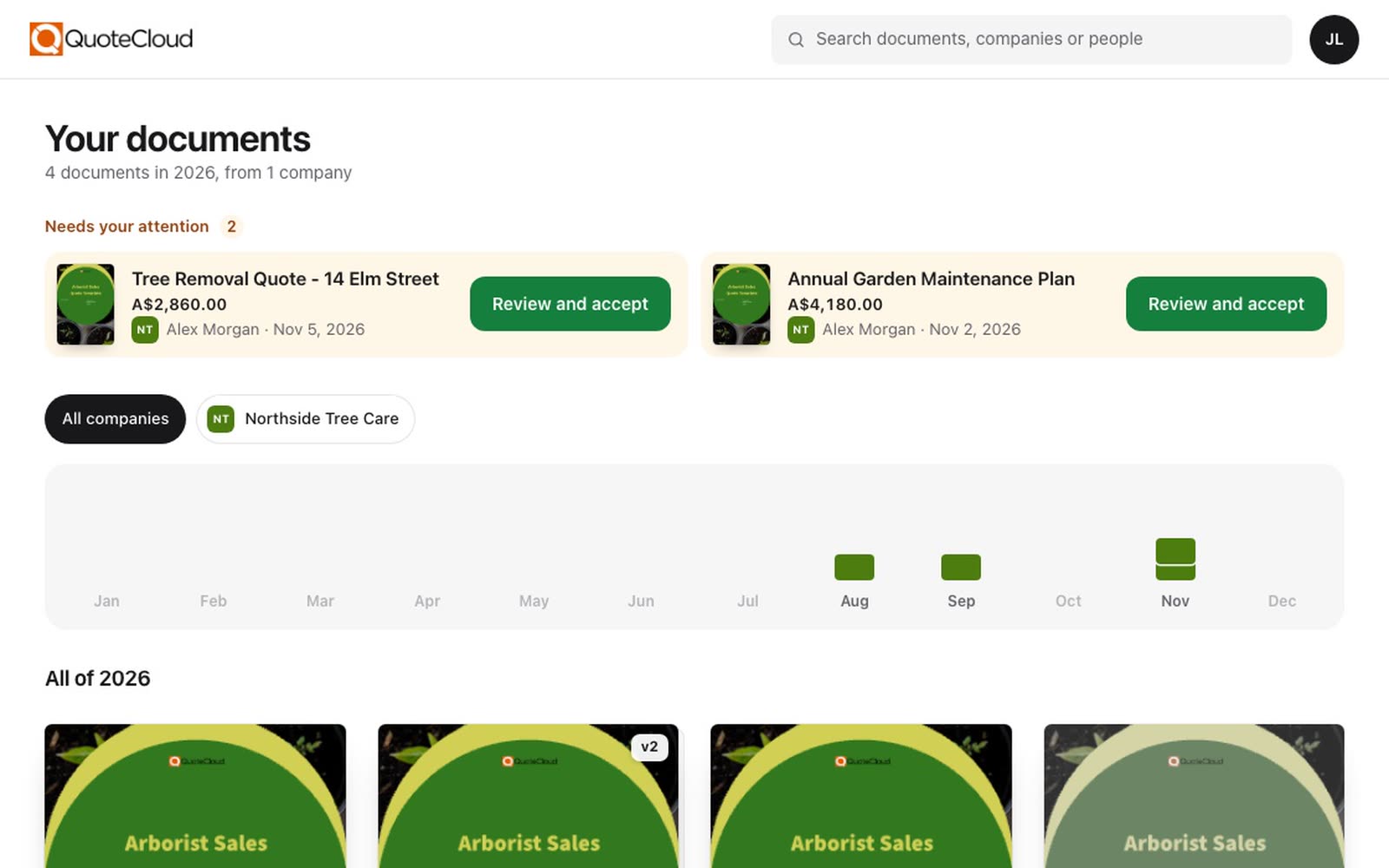
Documents waiting for a signature or acceptance show first, under Needs your attention.
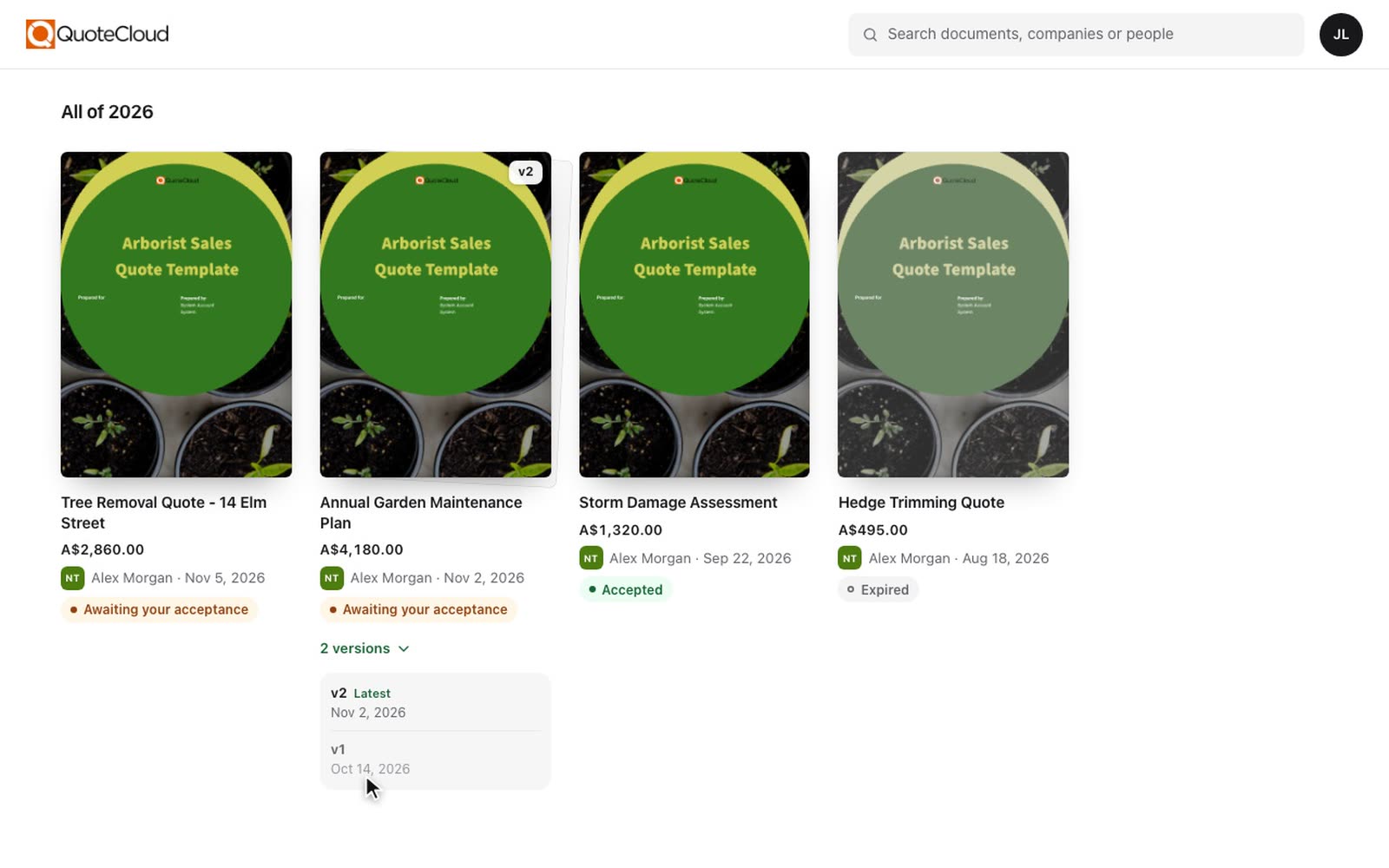
Each document shows its total including tax, who sent it, when, and its status, such as Accepted or Expired.
Each document shows a picture of its first page. The picture updates when you send the document, or soon after you save a change to the first page.
Drafts, deleted documents and documents shared by link do not appear. Opening a document from the list counts as a normal tracked open.
Find a document
Select a month on the chart to show the documents sent that month. Select it again to show the whole year.
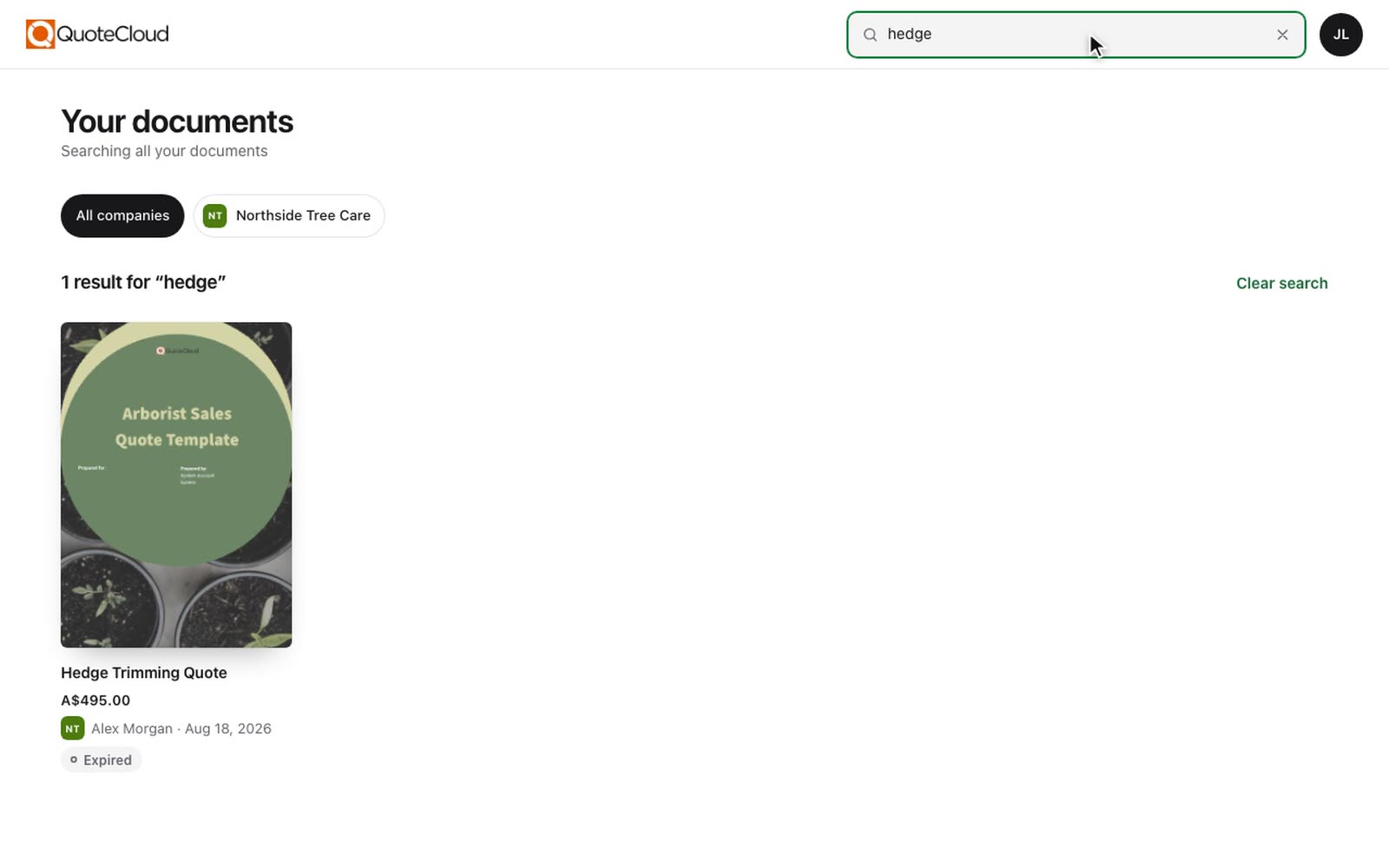
Search by document title, company or person.
When more than one company has sent documents, select a company to show only theirs.
Versions
When you revise a document, the list shows the latest version. Select 2 versions (or more) under it to see the older versions. Only versions sent to that address appear, and older versions open for reading only. If you turned off Allow to view previous version in a version's settings, that version does not appear.
If a link does not open
If a document link is damaged or no longer works, the recipient sees a page that explains this instead of a login page. They can contact the sender, or go to Viewer Home to find the document.
Keep your documents out of Viewer Home
Viewer Home is on for every company. To turn it off, see Turn Viewer Home off for your company.