QuoteCloud

What’s changed
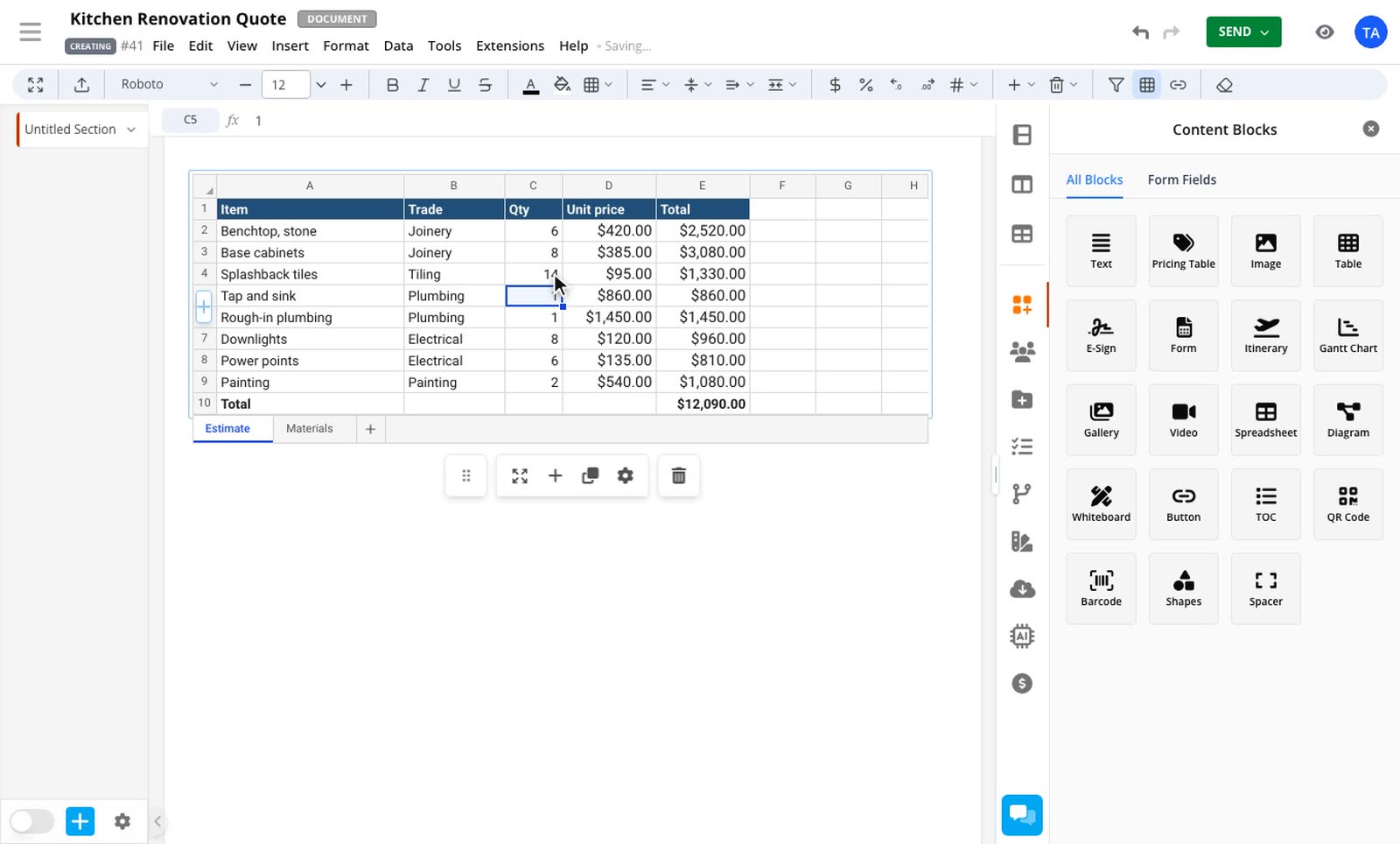
Tables keep their clean document look, and now work more like a spreadsheet.
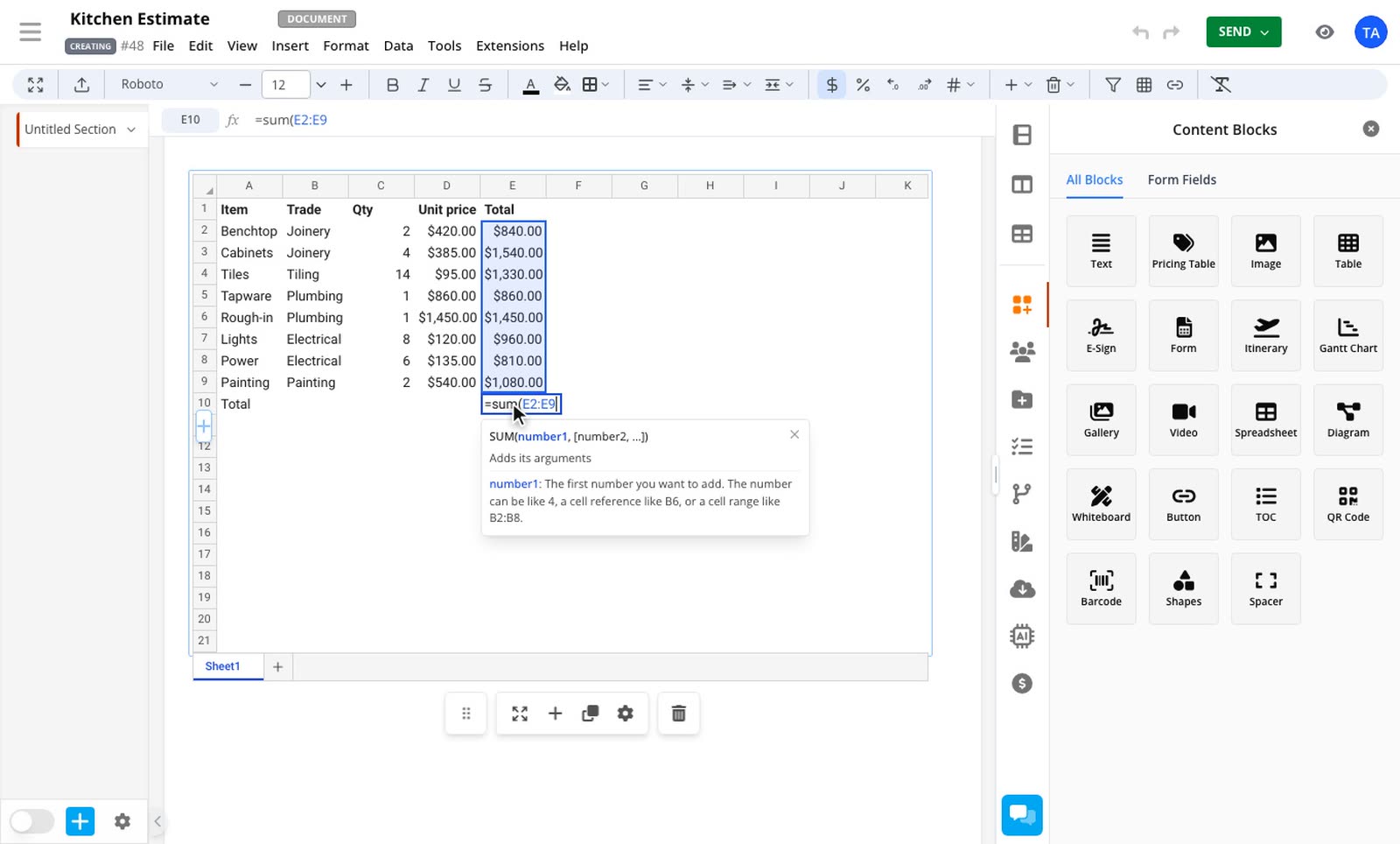
Formulas in any cell
Type = in a cell to start a formula. You get the same functions as the Spreadsheet block, with suggestions and help as you type. Click cells to add them to the formula, and press F4 to lock a reference.
Format results as currency, percentages, dates or your own format.
Link tables together
Use a value from another table with its name, such as =Summary!B2, or from a spreadsheet, such as =[Costs]Sheet1!B4. Right-click a cell and choose Copy cell reference to show its value in a text block or a pricing table.

Format part of a cell
Make one word bold, colour a phrase or add a link, without changing the rest of the cell. Paste from Excel or Google Sheets and the table keeps formulas, formatting and merged cells.

Sort, filter and highlight
Sort rows from the Table menu, filter out rows your customer doesn't need to see, and colour cells by their values. Press Cmd+/ in a table, or Ctrl+/ on Windows, to see every shortcut.

Read use formulas in a table, format table text and use keyboard shortcuts and sort, filter and highlight table rows for more detail.