QuoteCloud
What’s changed
Writing a formula in a spreadsheet block now works more like Google Sheets.
Less to type
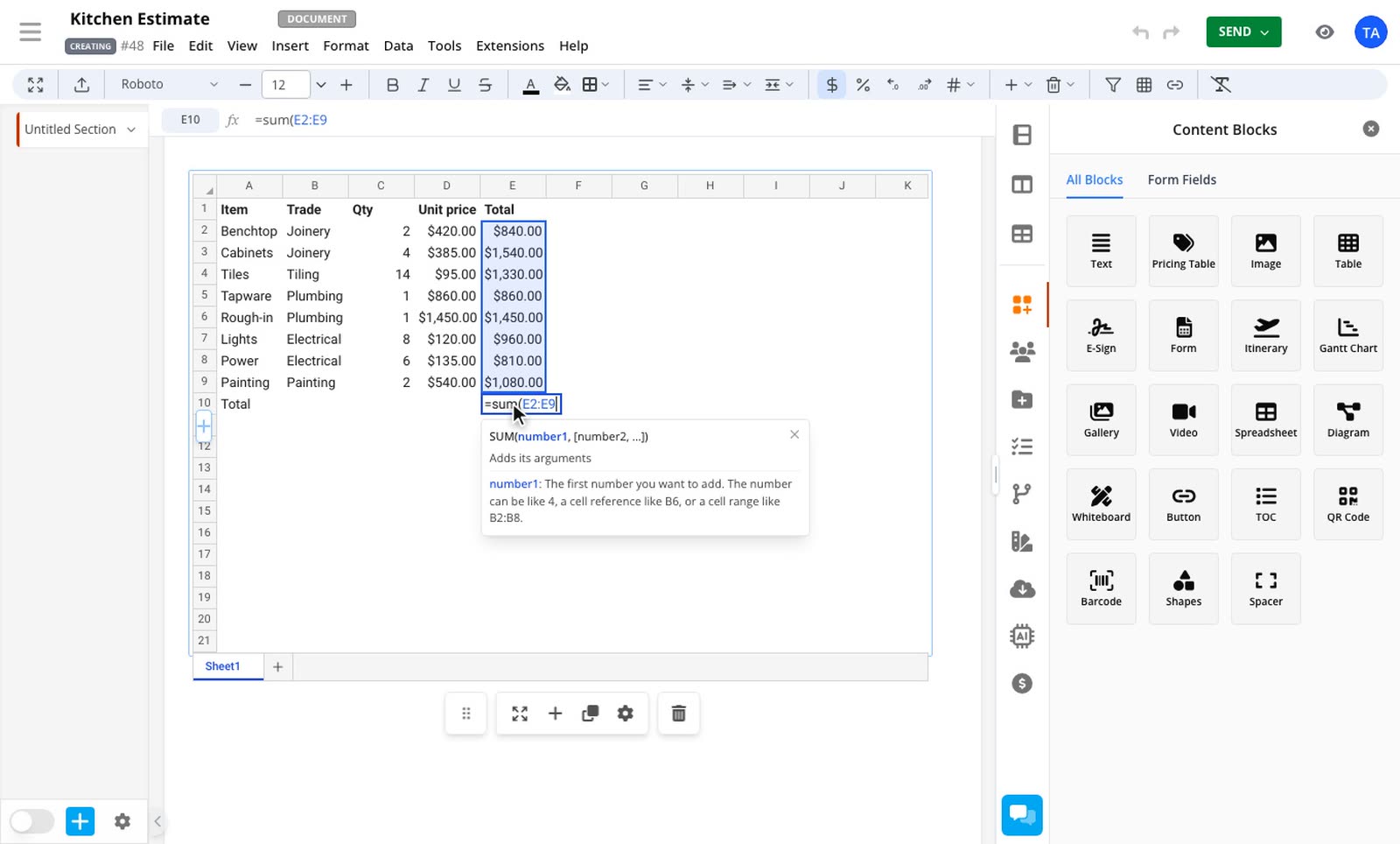
Press Enter without typing the last bracket and the sheet adds it for you. After an opening bracket or an operator, press an arrow key to point at a cell instead of typing its name.
Help as you type
Function suggestions now say what each function does. Inside the brackets, a hint shows the arguments and explains the one you're on. Press F1 to hide it if it's in your way.
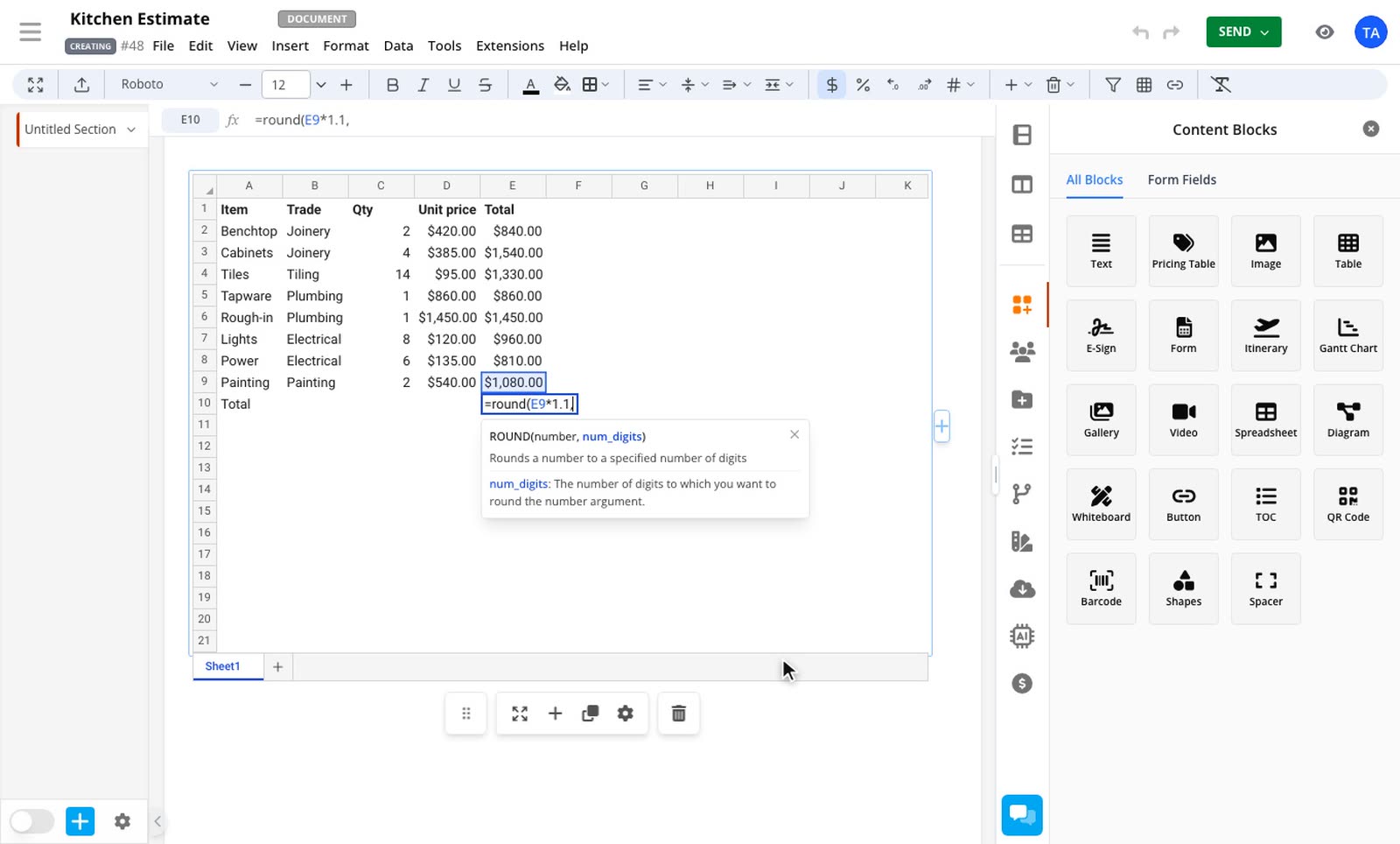
Cell references in your formula match the colours on the sheet, and the bracket next to your caret is highlighted with its partner.
Lock a reference with F4
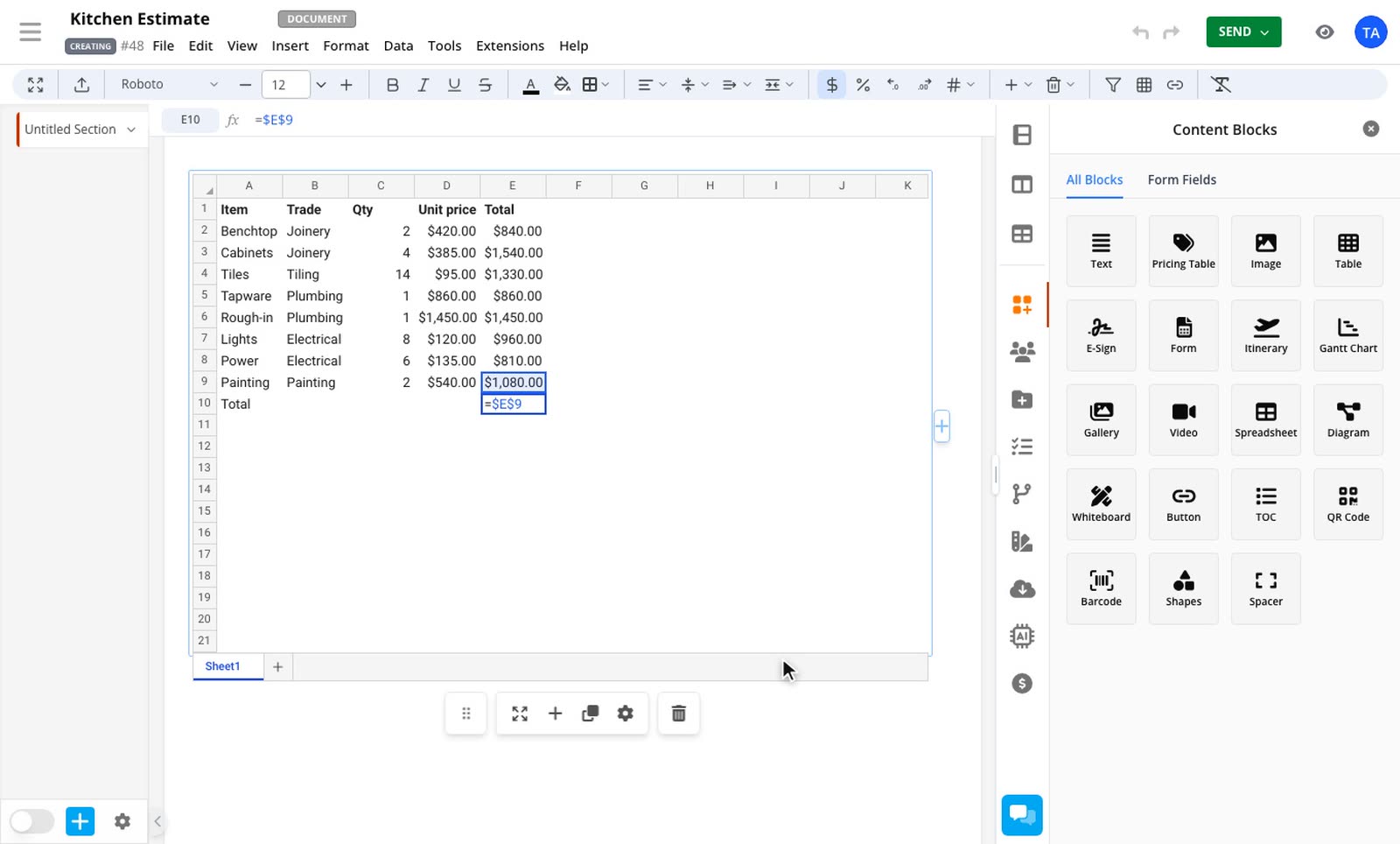
Put your caret on a reference and press F4 to switch between A1, $A$1, A$1 and $A1.
Errors that explain themselves
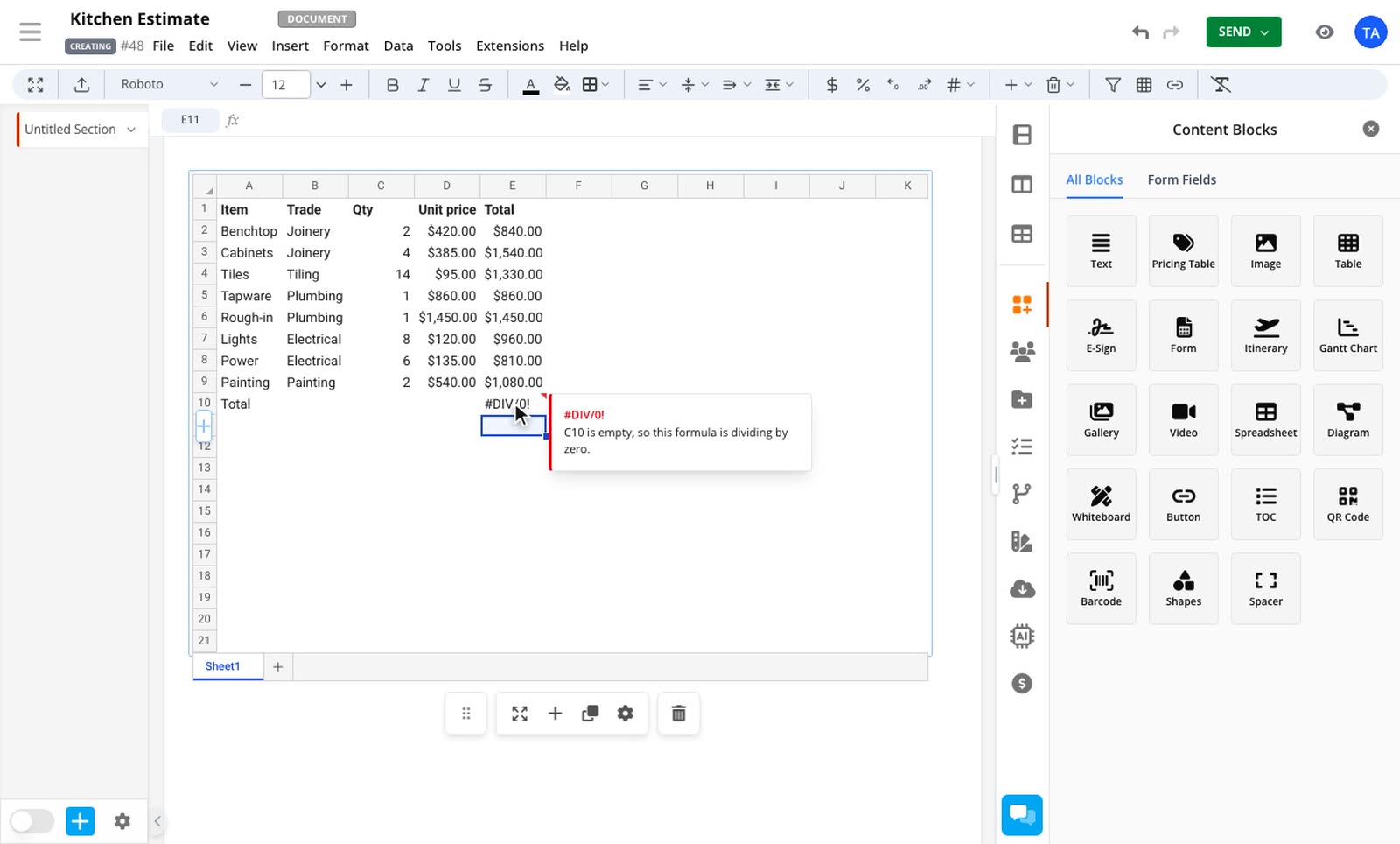
Cells with a formula error now have a small red triangle. Hover over the cell to see what went wrong. Where the sheet can work out the cause, it names it, such as the empty cell you're dividing by or a function with the wrong number of arguments.
Read using formulas in spreadsheet blocks for more detail.