QuoteCloud
What’s changed
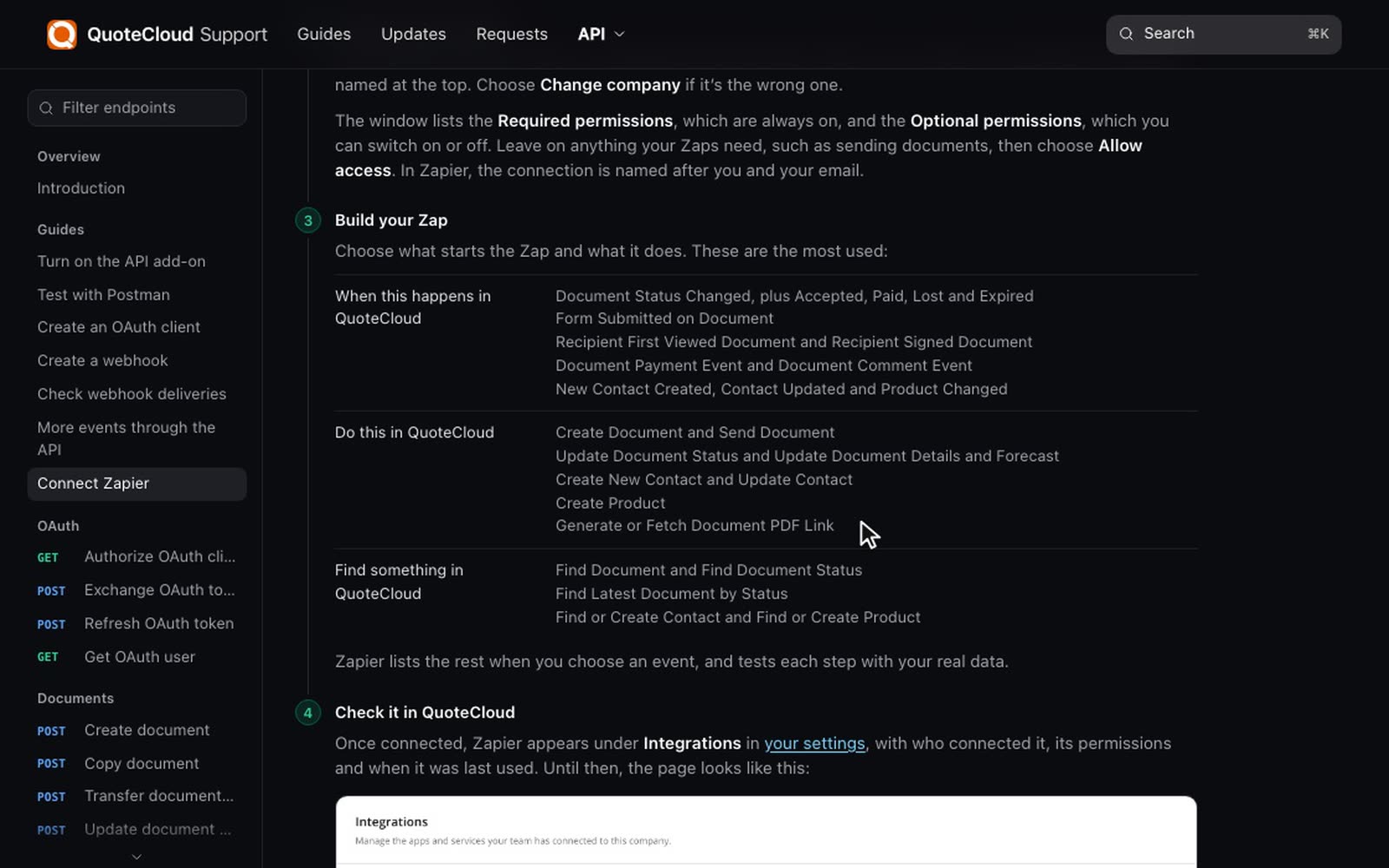
The QuoteCloud app on Zapier has new triggers for Document Accepted, Document Signing Complete, Document Lost and Document Paid. Accepted and Signing Complete also include a Signed PDF File field, so you can attach the signed PDF to an email or upload it somewhere else.
Status triggers now include the outcome reason, the previous status and the time of the change. There are also Invoice Line fields for Xero, QuickBooks and other invoicing apps. Your existing Zaps keep working.
See what your Zaps are doing
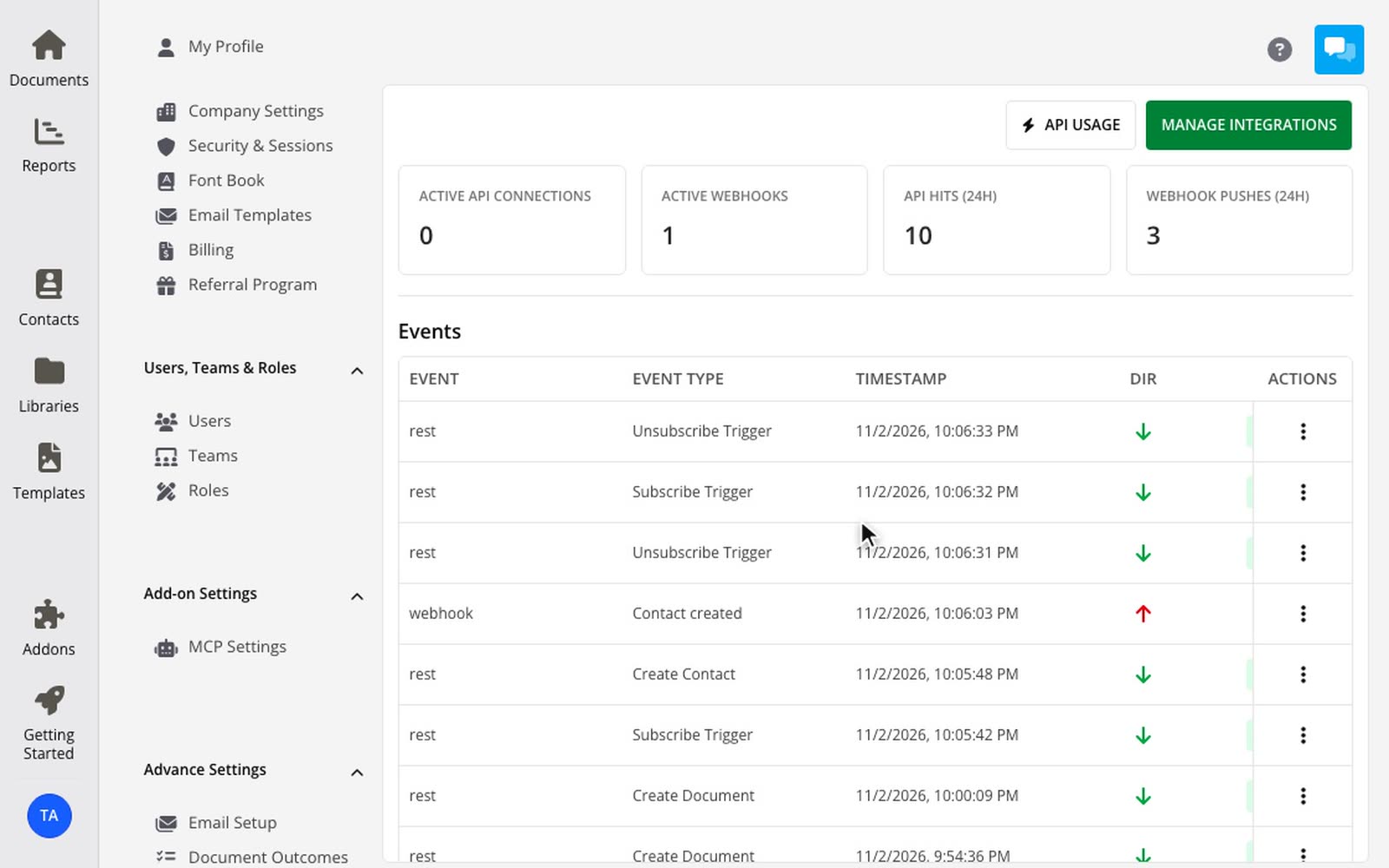
Your API dashboard in QuoteCloud shows recent API activity and webhook pushes. Select MANAGE INTEGRATIONS to see your webhooks in one place.
How to use it
3 steps
Choose a trigger
In Zapier, create a Zap and choose Document Accepted or Document Signing Complete from QuoteCloud.
Add your next step
Add an action, such as sending an email.
Attach the signed PDF
Map Signed PDF File into the action's attachment field, then publish your Zap.
New to Zapier? Connect Zapier to QuoteCloud first.