 QuoteCloud
Getting Started
Set up your account, watch the product tour and create your first document from Getting Started, on desktop or on your phone.
Getting Started is the first page you see after you sign up. It walks you through setting up your account and sending your first document. Your progress is saved to your account, so a step you finish on your phone is ticked on your computer too.
What's on the page
Trial. During a free trial, how many days are left, with a button to choose a plan.
Your first document. Until your company has a document, a card at the top opens the Create Document sheet. After that, suggestions take its place, such as continuing a draft or following up a sent document.
Product tour. A short video that follows one quote from template to signature. Captions are on, so you can watch without sound. Tap a chapter to jump to it, and the tour remembers where you stopped.
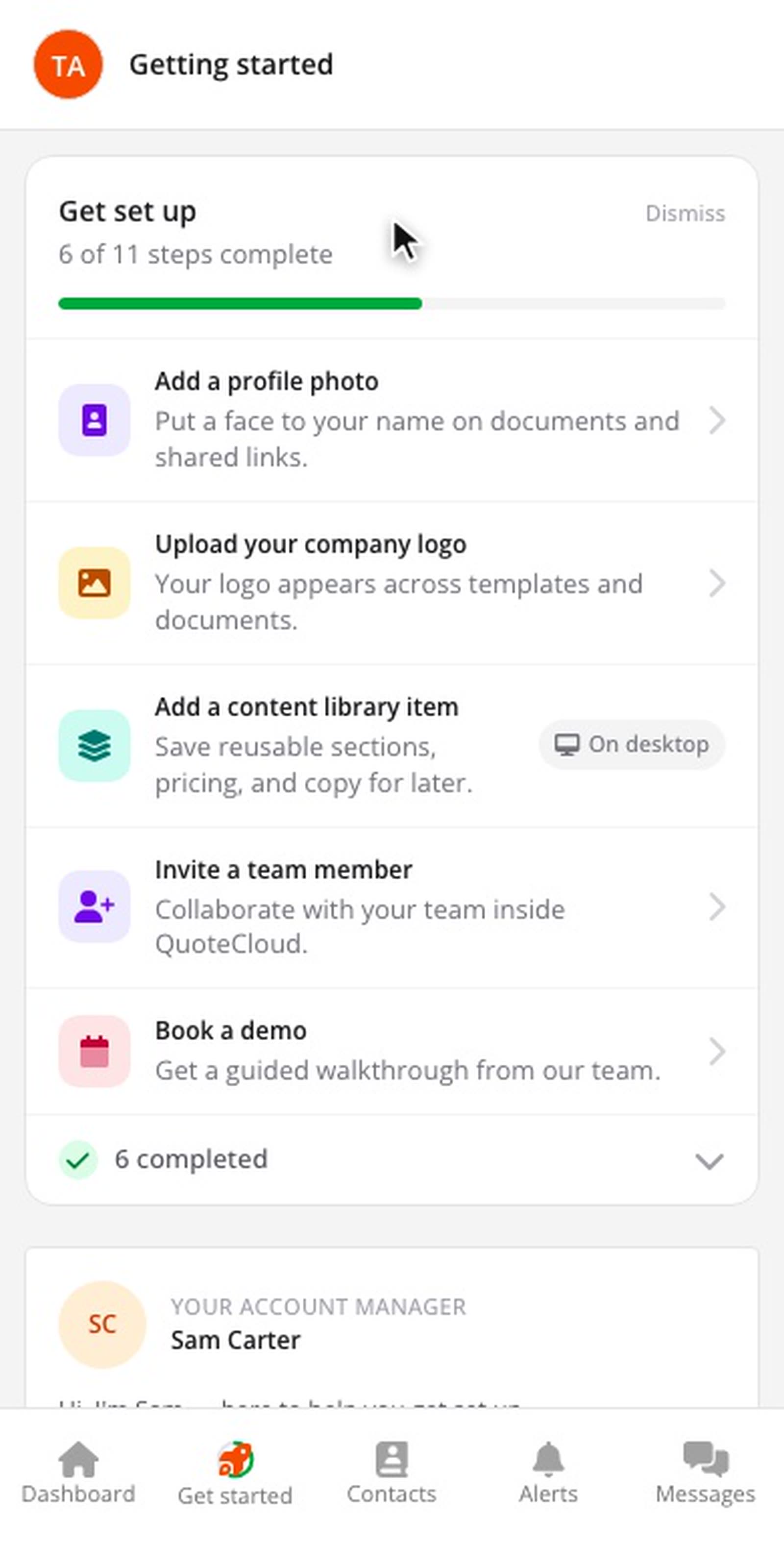
Get set up. A checklist of setup steps, such as adding a profile photo, uploading your company logo and inviting a team member. Each step ticks itself off when you do it.
Your account manager. Send a message to the person helping you get set up.
Templates for your industry. Pick one to start a document from it.
Your activity. Points, level, streak and team rank. Open it for your full profile and badges.
Feature spotlight, add-ons, what's new and tips. Ideas for getting more out of QuoteCloud.
Refer and earn. Your referral code, ready to copy and share.
Help and support. Contact the support team, book a demo, or open more help.
On your phone
Open Getting Started from the Get started tab at the bottom of the screen. The ring around its icon fills as you finish steps. While setup steps remain, a Finish setting up strip above your documents shows your progress and the next step; tap it to open Getting Started.
Tap a step to go straight to the screen where you do it. Creating a template and adding a content library item are marked On desktop, because those screens are only in the desktop app for now.
When setup is finished or dismissed, the tab is renamed Discover and the strip goes away. The rest of the page stays. If you dismissed the checklist before finishing, tap Resume setup on the Discover page to bring it back.
FAQs
How do I hide the checklist?
Tap Dismiss at the top of the checklist. This hides it on desktop and on your phone.
Why doesn't a step tick off?
Steps tick off when the matching action is saved, for example when your logo finishes uploading. If a step stays open, reopen Getting Started to refresh it.