QuoteCloud
What’s changed
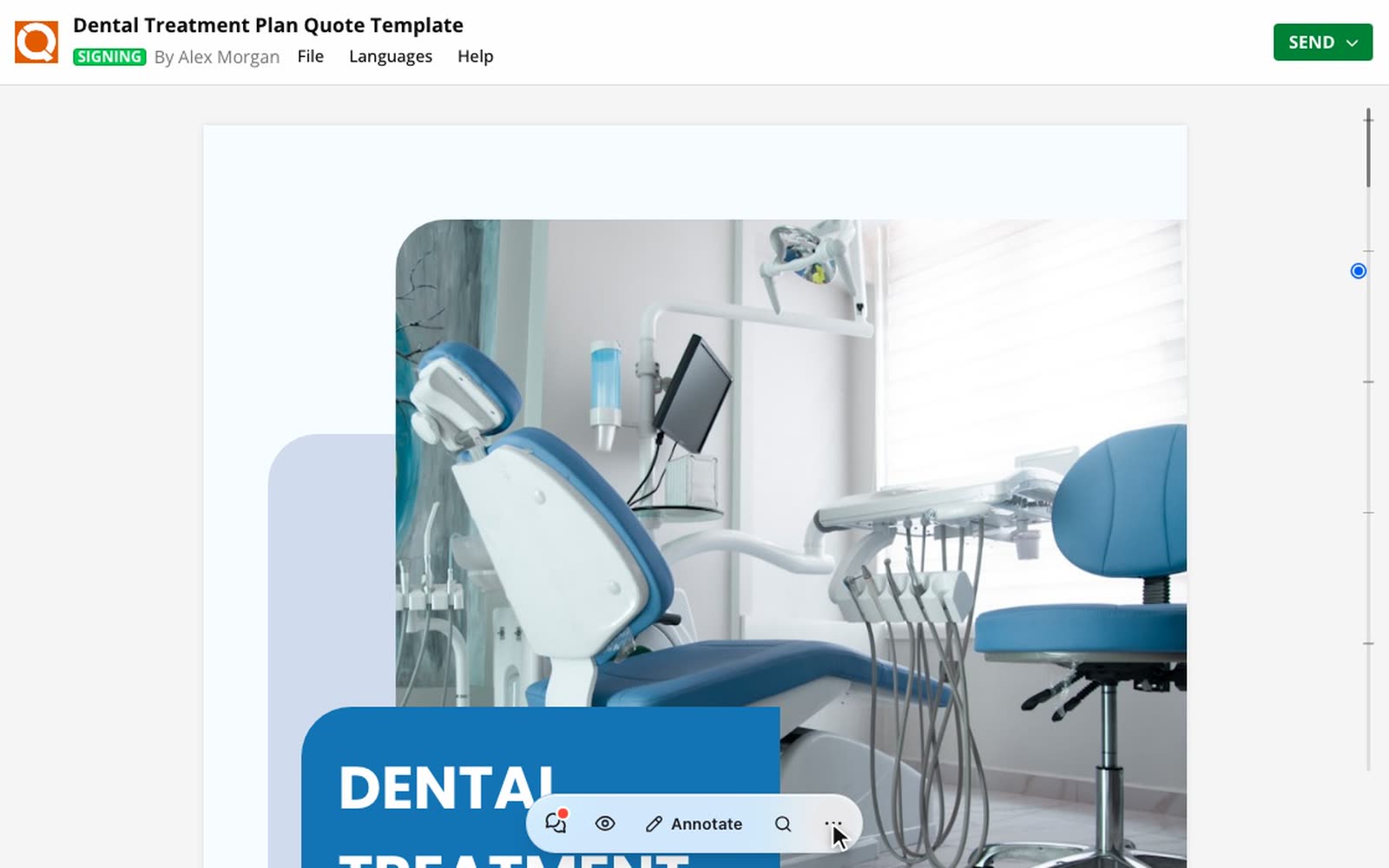
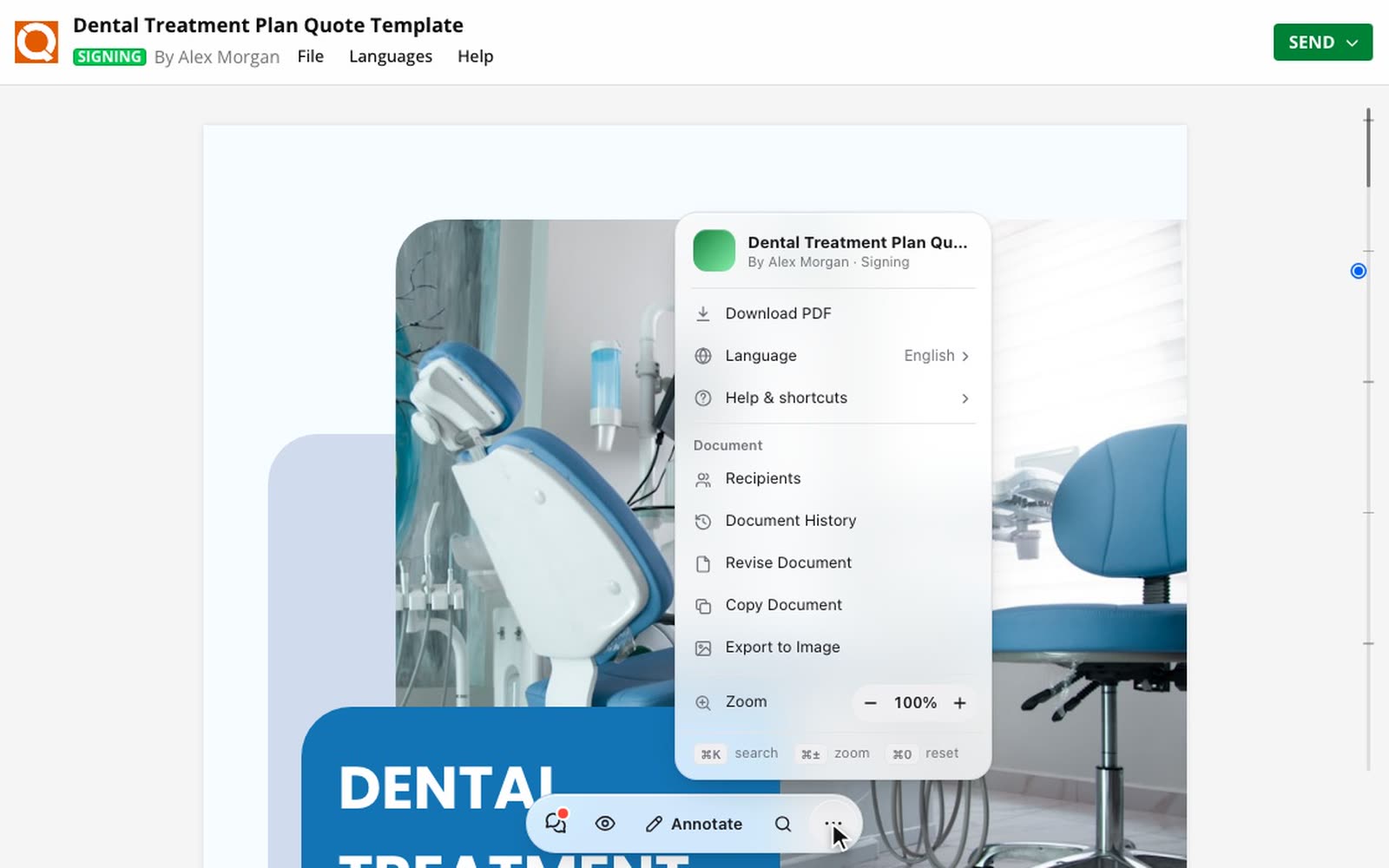
Long proposals are easier to work through now. The toolbar sits at the bottom of the document and slips out of the way as you scroll, so the page keeps the room. Bring it back whenever you need it.
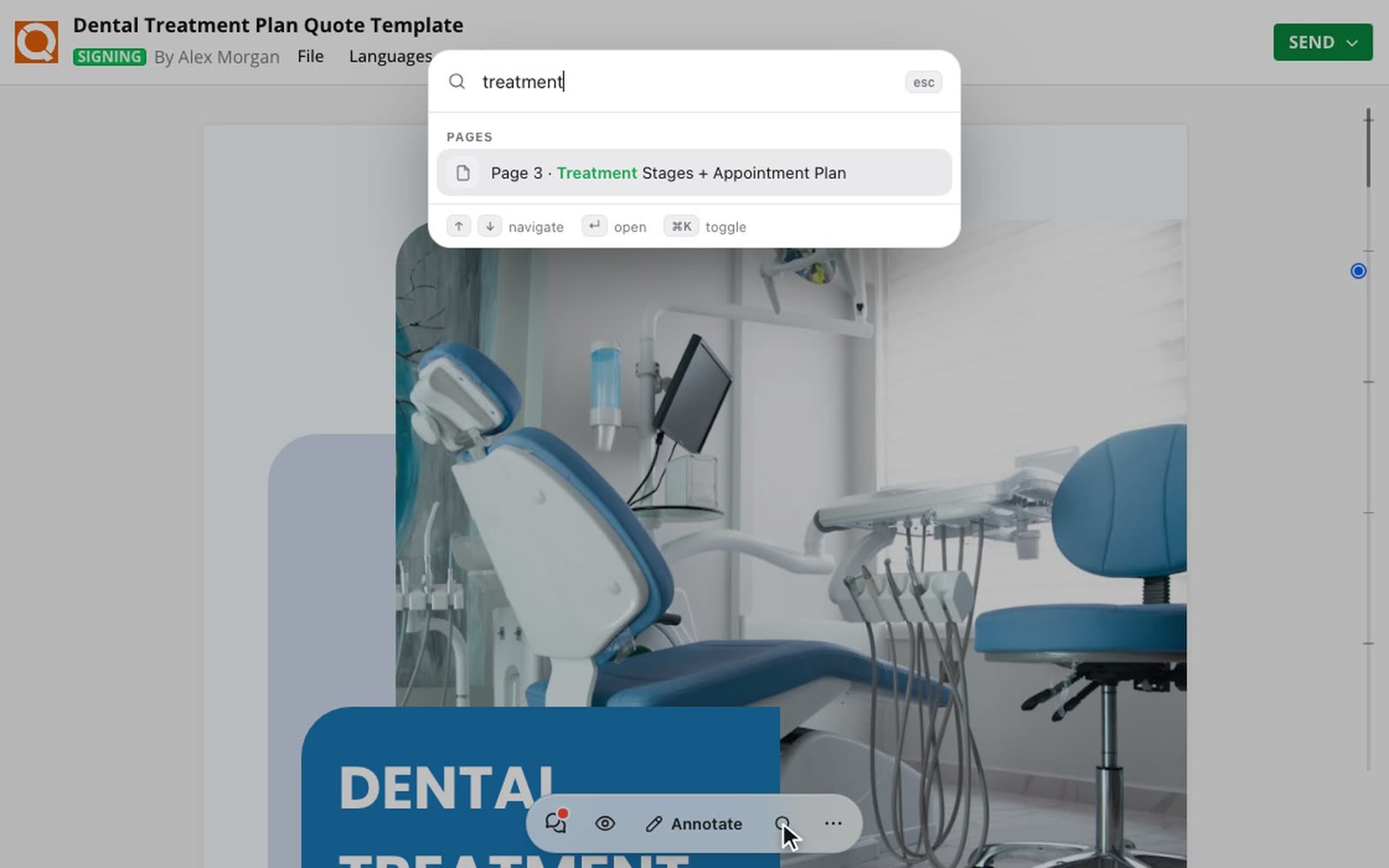
Find anything in the document
Select the magnifying glass, or press ⌘K on a Mac or Ctrl+K on Windows, and start typing. Matches appear straight away. Press Enter to jump to the page.
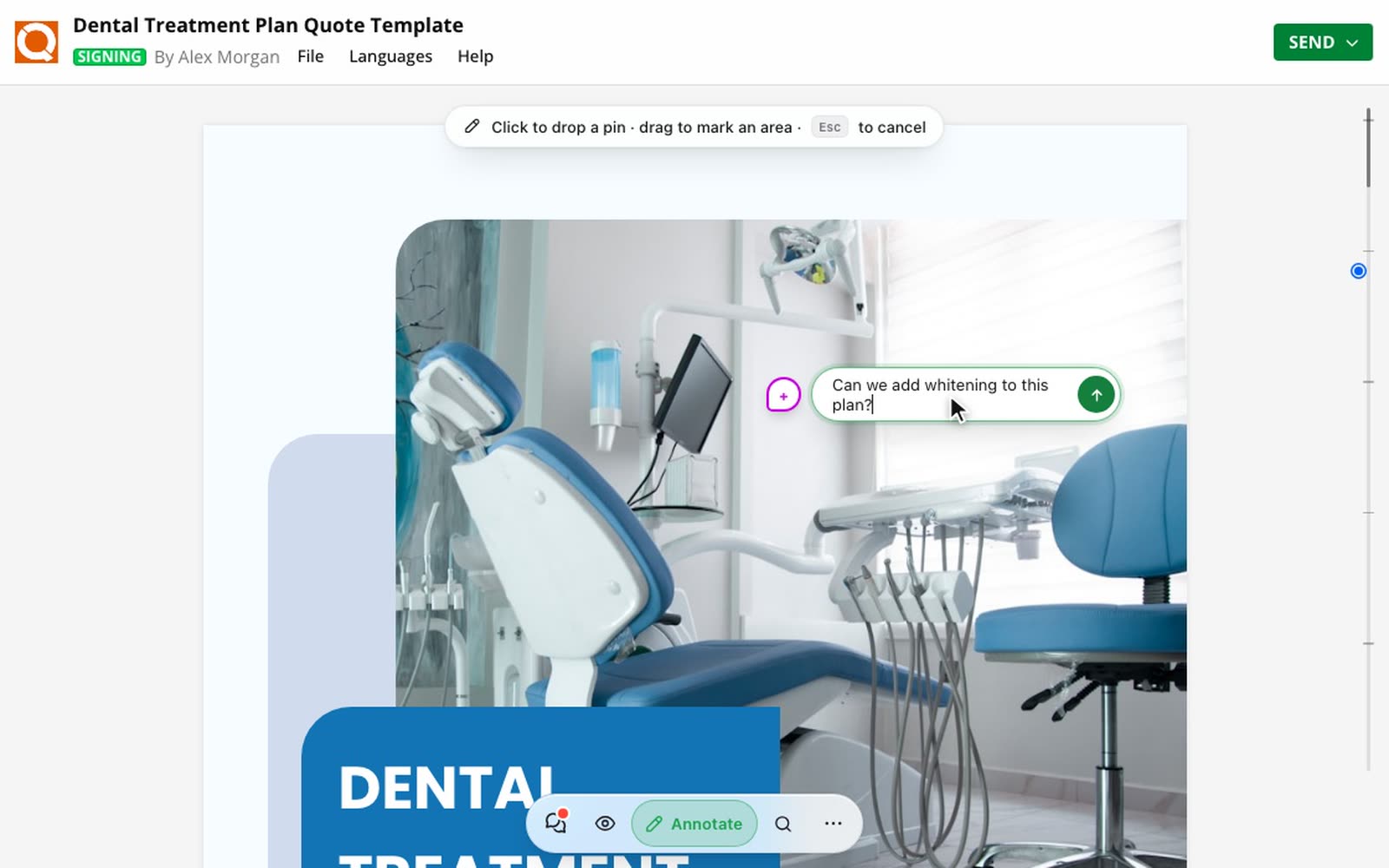
Leave a note exactly where it belongs
Select Annotate, then click anywhere on the page to drop a pin, or drag to mark an area. Your comment stays attached to that spot, so nobody has to ask which paragraph you meant.
Everything else, one tap away
Select More options for the things you used to go looking for: download the PDF, change the language, see who the recipients are, check the document's history, or make a copy.
How to use it
3 steps
Open a document
Open any sent document. The toolbar is at the bottom of the page.
Bring it back when it hides
Scrolling down shrinks the toolbar to a thin line. Hover over the line or tap it, or scroll back up, and it returns.
Search, annotate or open the menu
Choose the magnifying glass, Annotate or More options.